
WeCom Customer Service
Set up WeCom Customer Service with LangBot to power AI-driven support conversations.
This article details the process of deploying LangBot to a WeCom customer service account, which allows conversations between the customer service account and regular WeChat. If you only need to use it within WeCom, please refer to [WeCom Internal Application Implementation](wecom).
Deploying a WeCom customer service account requires enterprise qualifications. Please check the WeCom Customer Service Integration Guide and provide the corresponding enterprise qualification certificates according to this document.
Effect Demonstration
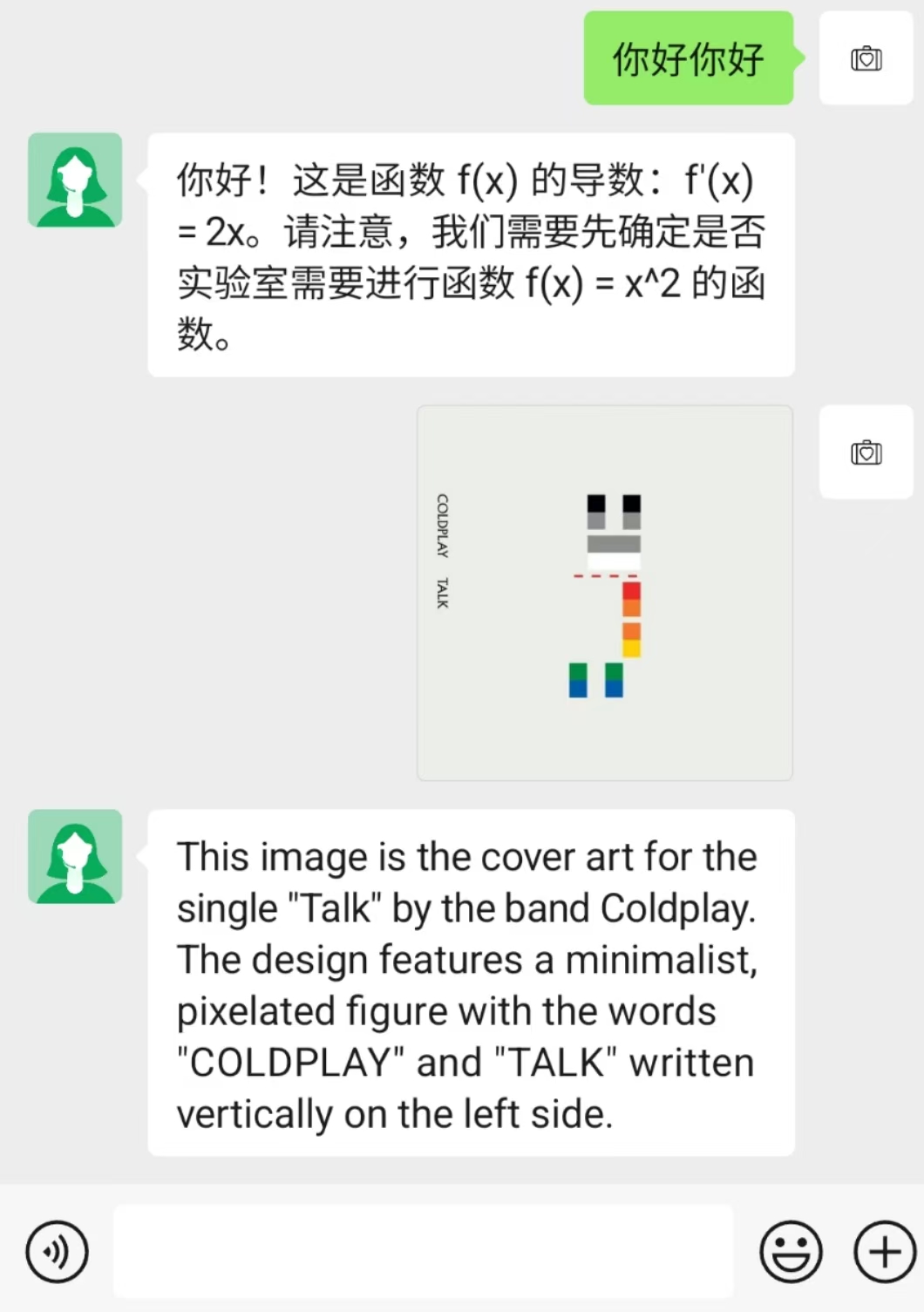
Deploy WeCom Customer Service
Configure WeCom Customer Service Page
Open the WeCom Customer Service Admin, log in, click on Enterprise Information, and obtain the Enterprise ID.
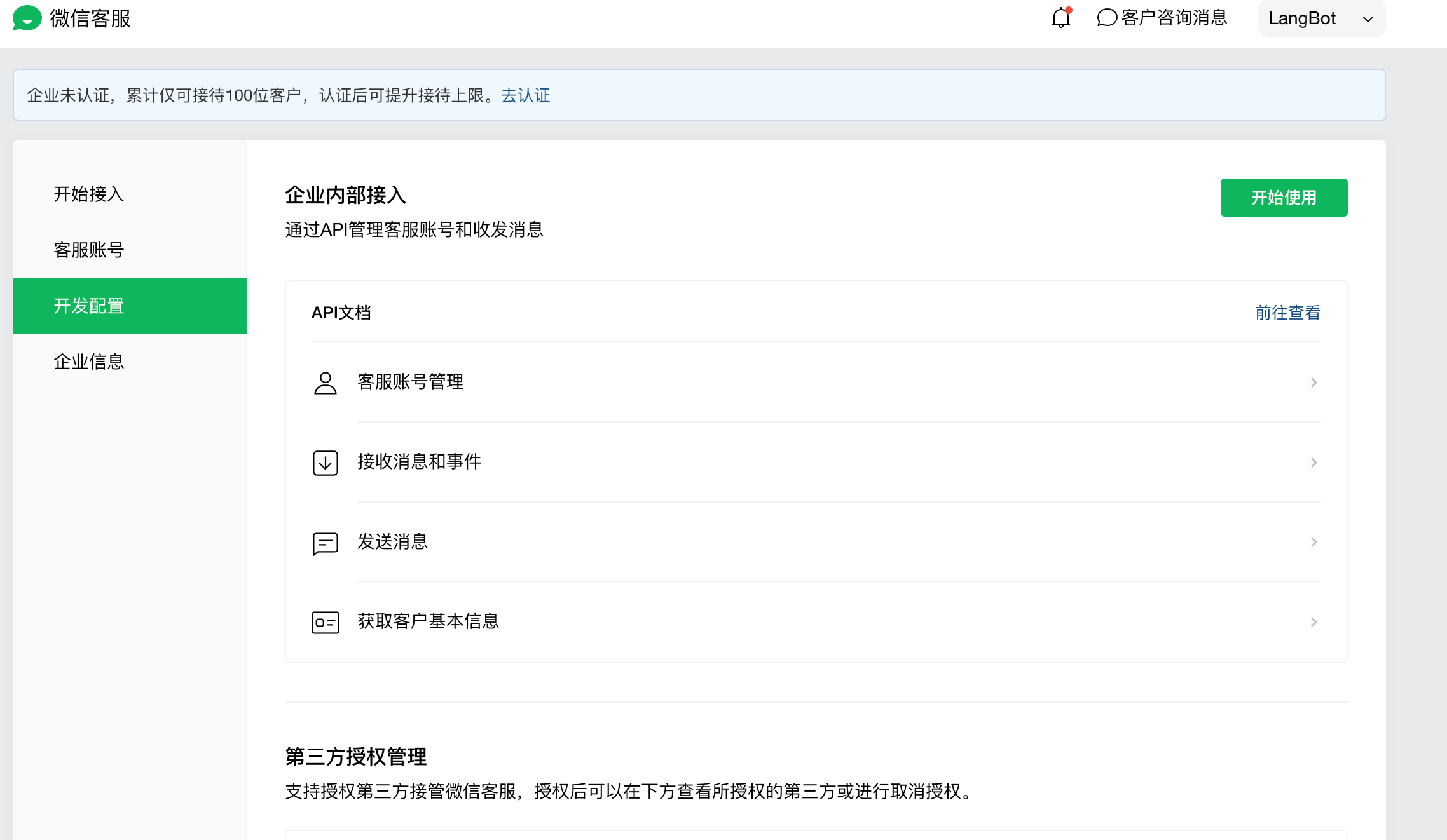
Save the Enterprise ID, then click on Developer Settings, click on Start Using, and randomly generate a Token and EncodingAESKey. Fill these three items into the LangBot configuration page. The Secret can be filled in arbitrarily, as shown below:
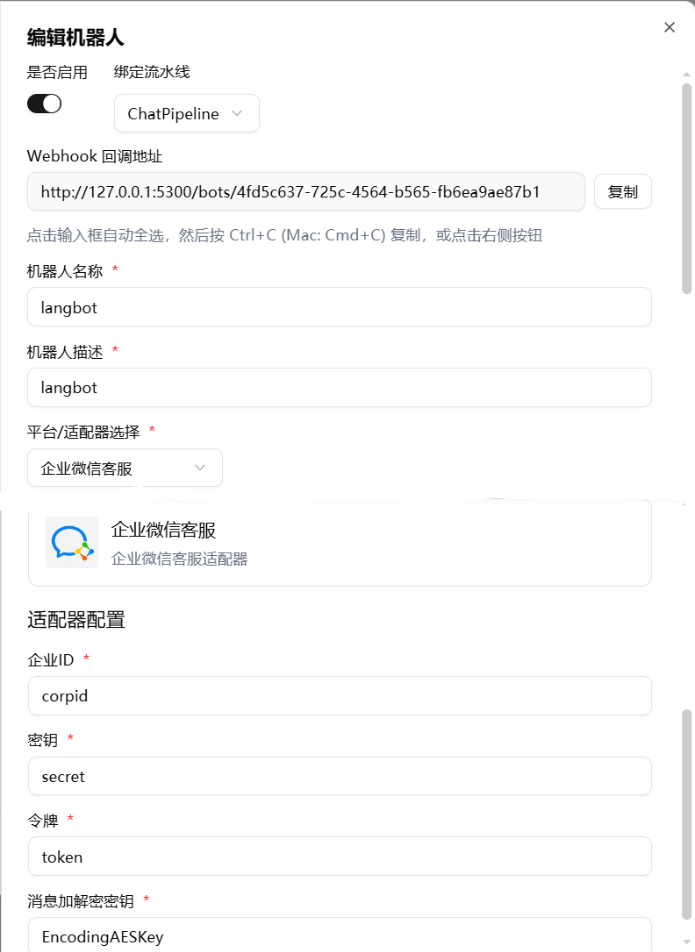
Click Submit on the LangBot configuration page to enable the robot, copy the Webhook callback address, and fill it into the URL in the WeCom Customer Service admin backend (remember to change it to your own IP or domain name), then click Save. If it saves successfully, it means the connection is working.
Domain setup too complicated? LangBot Cloud includes built-in domain and HTTPS — no configuration needed.
Copy the Secret from the page, then open the newly created LangBot WeCom Customer Service robot, fill in the new Secret, and restart.
Get the customer service link and QR code
After configuring the callback, obtain an entry point that WeChat users can use to start a conversation.
- Return to the WeChat Customer Service console, open Customer Service Accounts (
客服帐号), and create or select the account you want to connect to LangBot. - Open its integration page, scroll to Integrate into apps or websites outside WeChat (
在微信外App/网页中接入), and click Integrate (去接入).
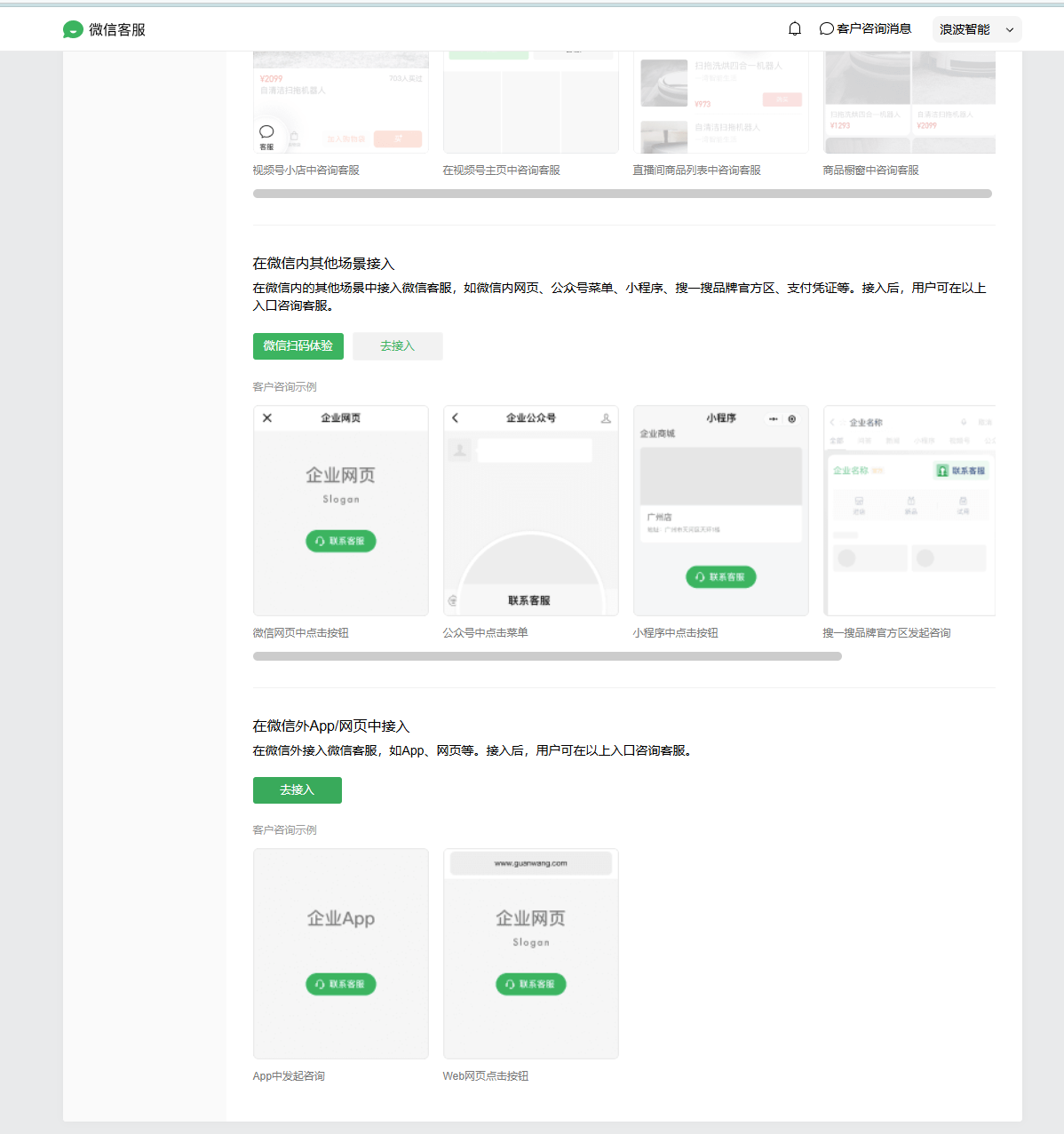
- Find the account at the top of the integration page. Click Copy Link (
复制链接) to obtain its customer service link, or Generate QR Code (生成二维码) to display its QR code.
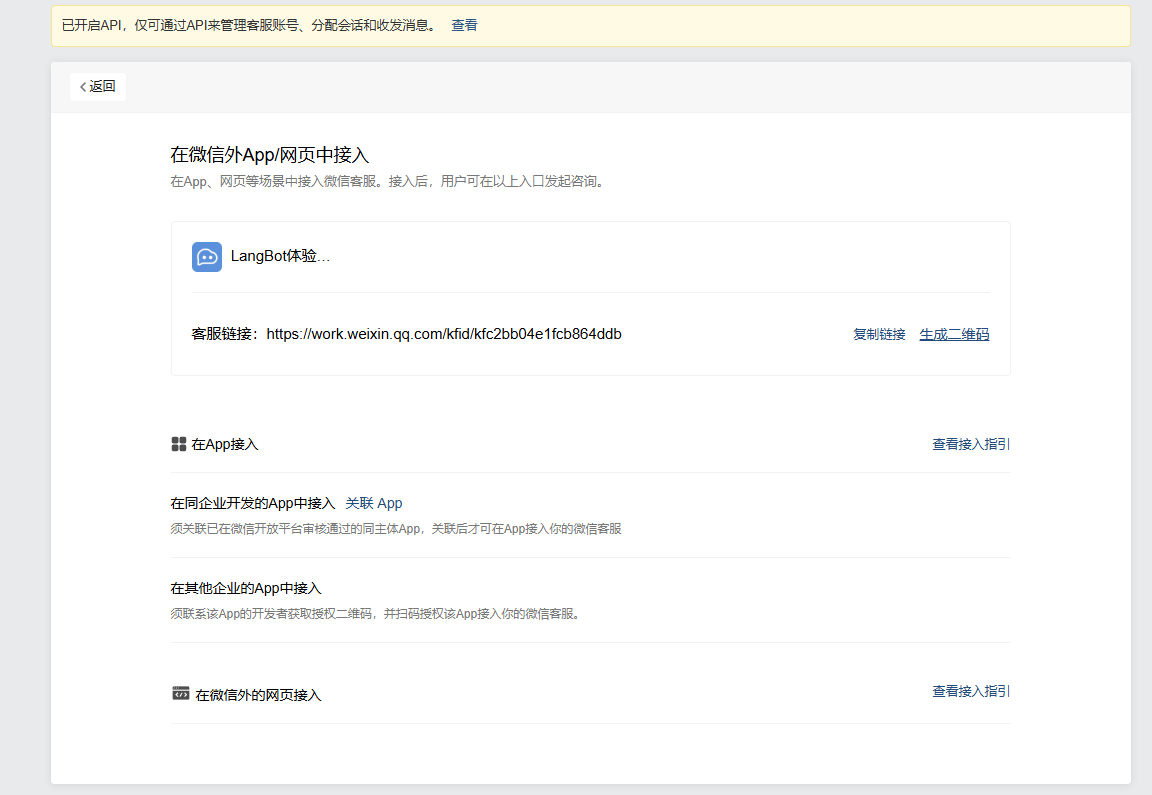
The link in the screenshot is an example. Use the link or QR code generated for your own account. The Webhook callback URL delivers events to LangBot; the customer service link and QR code let users start a conversation.
Test with WeChat
- Enable the bot in LangBot and configure Event Routing to send Message Received events to the processor you want to use.
- Scan the generated QR code with regular WeChat, enter the customer service conversation, and send a message.
- Check the bot logs, session monitor, and the processor's execution logs in LangBot to confirm receipt and processing, then check for a reply in WeChat.
For a QR-code test, you do not need to configure the app association shown further down the integration page.
Routable events
Select a processor for each event in the bot's Event Routing settings. Regular messages can use a Pipeline or Agent; other events require an Agent or plugin processor that supports them.
| Event | Event type |
|---|---|
| Message received | message.received |
| Customer or representative recalled a message | message.deleted |
| Customer entered through a service link | wecomcs.enter_session |
| Outgoing message failed | wecomcs.msg_send_fail |
| Representative availability changed | wecomcs.servicer_status_change |
| Conversation accepted, transferred, closed or reopened | wecomcs.session_status_change |
| Customer message rejection changed | wecomcs.reject_customer_msg_switch_change |
Recall events include the original message ID, operator and chat ID. Customer-service events retain account, customer and event-specific fields such as welcome_code, fail_type and change_type. Unknown events preserve their payload through platform.specific.
Entering through a service link triggers the entry event; reopening an existing chat from the chat list does not. Configure the processor's handling logic to send a welcome message; receiving the event alone does not send one.
Reply windows and welcome messages
- Ordinary replies require the customer to send a message first and must be sent within 48 hours. Entering a session alone does not open this window. Error
95002indicates that the sending time restriction was not met. - For entry events, the Agent's
event_replyuses the dedicated event response API withwelcome_code. WeChat only supplies this credential when welcome-message conditions are met. It permits one message and expires after 20 seconds. Prefer a fast, fixed welcome message instead of waiting for a long model response. - For session-status changes,
event_replyusesmsg_code, subject to its expiration and the current session state. Event replies currently support text. Missing, expired or used credentials cannot be reused; rerunning an old event does not extend their validity.
See the official send message and send event response documentation.