
Discord
Build a Discord AI bot with LangBot. Connect GPT, Claude, Gemini, DeepSeek and Dify to your Discord server in minutes.
Create the application and bot
Open the Discord Developer Portal and choose New Application. Do not include Discord in the application name: the portal rejects it. Complete the terms confirmation and verification shown by Discord.
- Copy the Application ID from General Information. This is the Client ID required by LangBot, not a server or channel ID.
- Open Bot, choose Reset Token, and complete verification. The token is shown only once. Enter it in LangBot; never include it in screenshots, source code, or public messages. Resetting invalidates the old token, so update LangBot as well.
- Under Privileged Gateway Intents, enable Server Members Intent and Message Content Intent, then Save Changes. The new adapter requests both. Presence Intent is not required.
Connect LangBot
Create a bot using the new Discord adapter (discord-omni). Enter the Client ID and token and save.
Configure event processing next:
- Pipeline: add a received-message rule and bind
message.receivedto a pipeline with a configured model. Configure Trigger conditions on the bot's event route to limit messages by text, session type, or message elements. Explicit event routes bypass the Pipeline's own group response rules; an unconditional route processes every received message. The mention-element condition matches an @ mention, not necessarily the bot. - Agent: bind events to an Agent. Instruct it to use the event reply tool to deliver messages; generated text alone is not delivery. Select only the tools the task needs.
- Plugin processor: add an existing plugin processor configuration separately on the bot page. It subscribes independently to the events declared by the plugin and can run alongside a Pipeline or Agent.
Enable an available Box sandbox when the runner needs code execution or file generation. Unrelated MCP servers are unnecessary for attachments; external tools with missing credentials introduce additional failures.
Enable the bot and look for Discord adapter running as ... in its logs. This confirms Gateway login. Send a real Discord message to verify routing and delivery.
Install in a test server
In OAuth2 → URL Generator, select bot and Guild Install. For ordinary messages, images, and files, select:
- View Channels
- Send Messages
- Embed Links
- Attach Files
- Read Message History
- Add Reactions
Open the generated link, select your test server, and authorize installation. Administrator is unnecessary. Add permissions for moderation or threads only when needed. Channel permission overrides must also allow access and replies.
Verify delivery
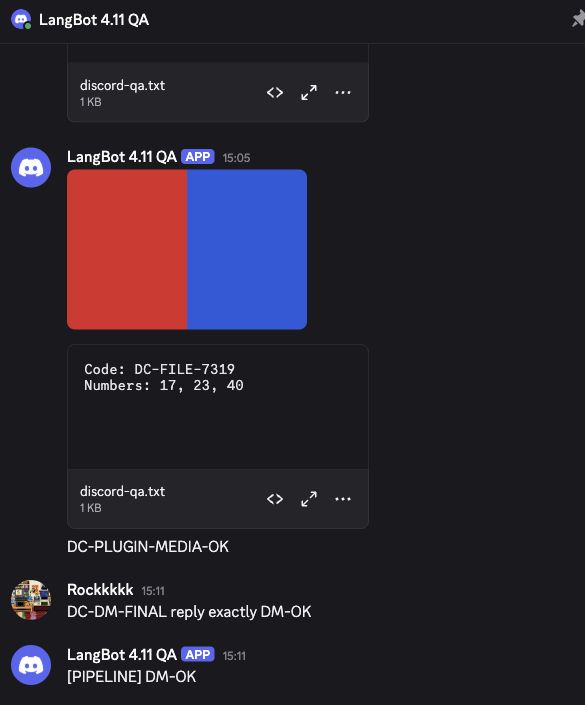
Send a message matching the trigger rules in a server channel, then open a DM from the bot's profile. Check ordinary replies, progressive streaming, image and text-file input, and actual returned attachments in both places. A filename or output path in a text reply is not proof that a file was delivered.
Discord limits each message's length, so long streaming replies must be delivered in multiple messages. Verify the final segment and end marker; a successful LangBot run alone does not prove complete delivery. Image understanding requires a vision model; file processing requires suitable runner tools and sandbox support.
The adapter also exposes edits, deletions, reaction additions/removals, member joins/leaves, bot joins/leaves, and platform-specific events. Pipelines process messages; route other events to an Agent or plugin. Interaction submissions come from interactive components sent by LangBot, not every possible Discord event.
For message events, chat_id is the channel ID and group.id is the server ID. Use the channel ID for channel delivery and the server ID for server/member queries and management. They are not interchangeable.
For member join/leave events, there is no originating channel. Replies use the server's configured System Messages Channel. Configure it in Discord's server settings and grant the bot View Channels and Send Messages there; without a system channel, the reply fails explicitly. The member-leave callback does not distinguish voluntary departure from a kick, so do not use is_kicked as an authoritative moderation signal.
Troubleshooting
-
Gateway login fails: check the current token and both required intents, including Save Changes. A browser login does not validate the bot token.
-
Online without replies: check enablement, event routes, processor model, group triggers, and channel permissions. Independent plugin subscriptions are configured separately.
-
Attachments fail: check attachment permissions, runner logs, Box readiness, and attachment download connectivity. CDN access is separate from Gateway connectivity.
-
Restricted network: the LangBot environment needs access to Discord Gateway, API, and attachment CDN. Configure a proxy appropriate to your deployment if required.
-
Screenshots: exclude tokens and real users' private conversations.
-
Attachment 404 errors in an old conversation: Discord attachment URLs expire, and an old image can also break later text-only requests. Upload the attachment again and reset the conversation context. With EssentialCommands installed, send
!reset(use your configured command prefix). Resetting context preserves monitoring records.