Slack
Build a Slack AI bot with LangBot. Connect GPT, Claude, Dify and more to your Slack workspace.
Quick setup (recommended)
Use Quick Slack setup to create your app. LangBot configures bot scopes, message events, the messages tab and the OAuth return URL. You provide configuration tokens, approve installation in Slack, and add an App-Level Token when using Socket Mode.
1. Create a bot and choose a connection mode
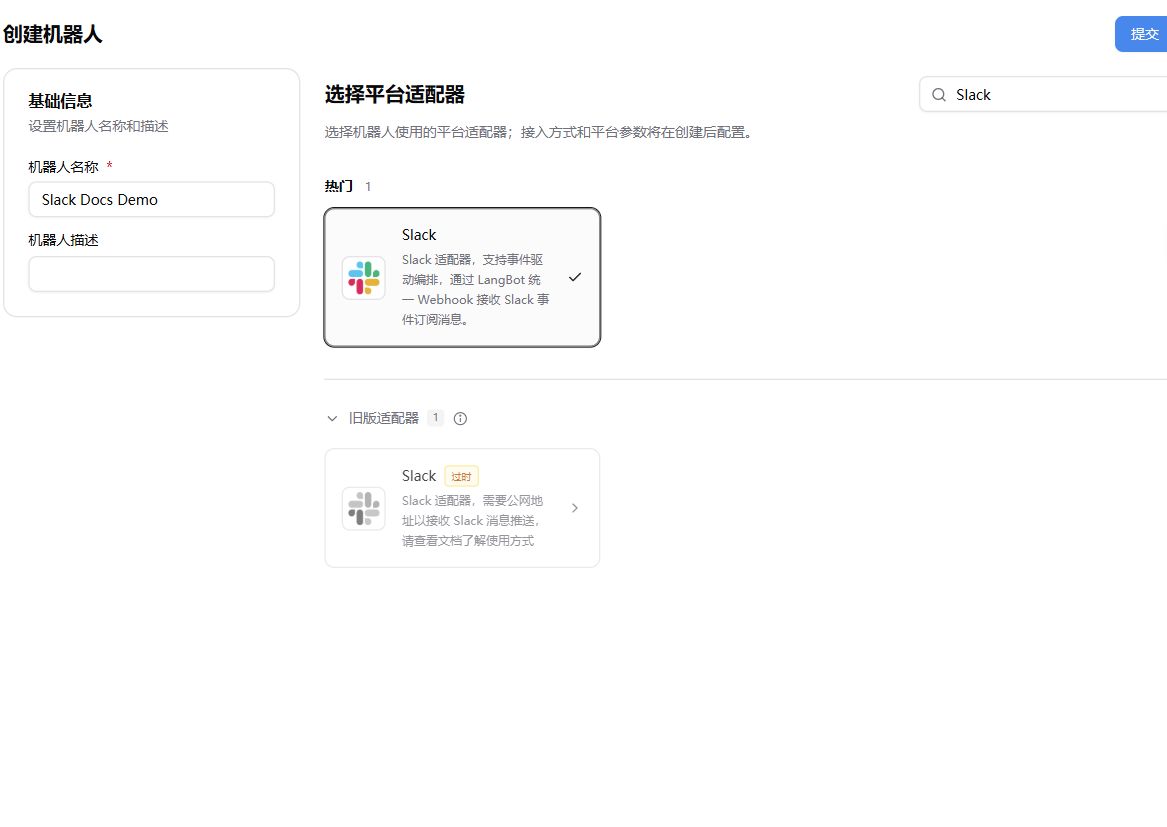
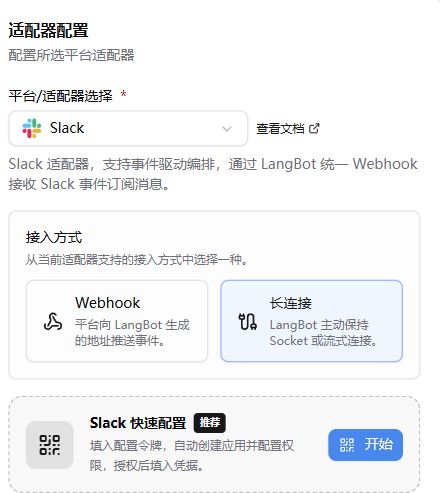
In LangBot, open Bots → Create bot, enter a name, select Slack, and submit. On the configuration page, choose a connection mode and select Quick Slack setup → Start:
- Socket Mode (recommended): LangBot connects to Slack. No public event webhook is required, making this suitable for local or private-network deployments.
- Webhook: Slack sends events to LangBot through a publicly reachable HTTPS endpoint.
2. Get App Configuration Tokens
Open the Slack apps page. Under Your App Configuration Tokens, select Generate Token and choose the target workspace. Copy both the Access Token and Refresh Token. If tokens already exist, use their copy buttons.
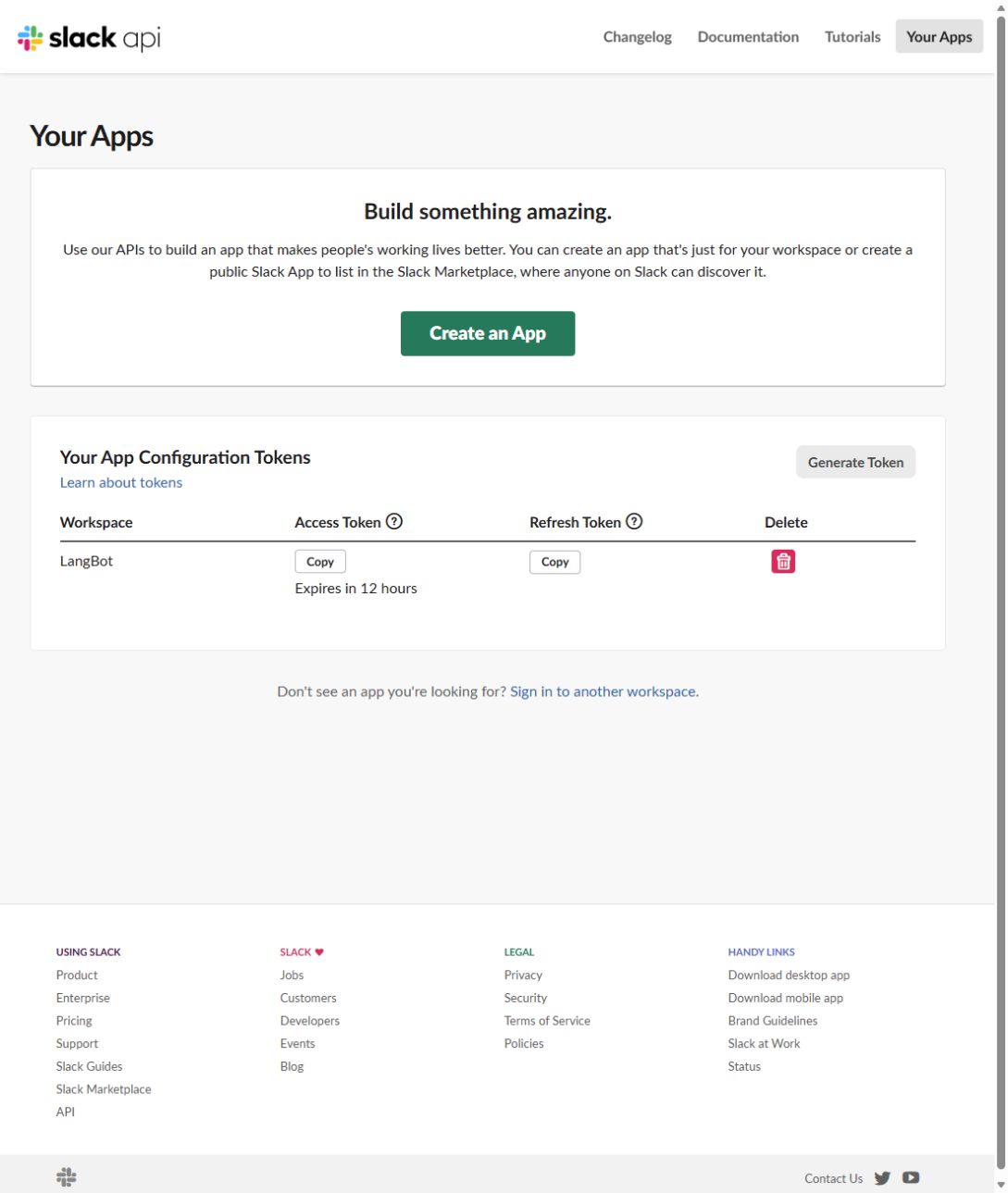
These tokens create and configure apps. They are not the runtime Bot Token or App-Level Token. Paste each into its matching field in the assistant and confirm the app name.
3. Confirm the URL and create the app
For Socket Mode, check the OAuth return URL. It returns your browser to LangBot after authorization, accepts HTTPS or http://localhost, and ends in /api/v1/platform/adapters/slack/setup/callback. Only your browser needs to reach it; this is not an event webhook. For remote deployments, do not use a server-internal address that your browser cannot reach.
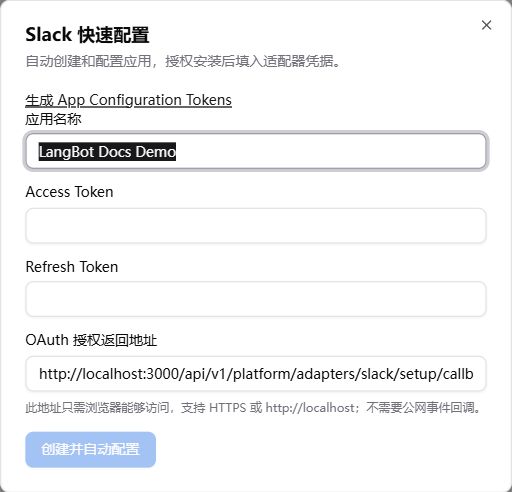
For Webhook, the assistant shows a Webhook URL instead. Verify the public domain, HTTPS and reverse proxy, and preserve the /bots/<bot UUID> suffix. LangBot derives the OAuth return URL from it and completes Slack's event URL verification automatically.
Select Create and configure, then wait for Authorize in Slack.
4. Authorize installation in Slack
Select Authorize in Slack, review the app name, workspace and permissions, and select Allow. Workspace policy may require administrator approval. Return to the original LangBot assistant afterward.
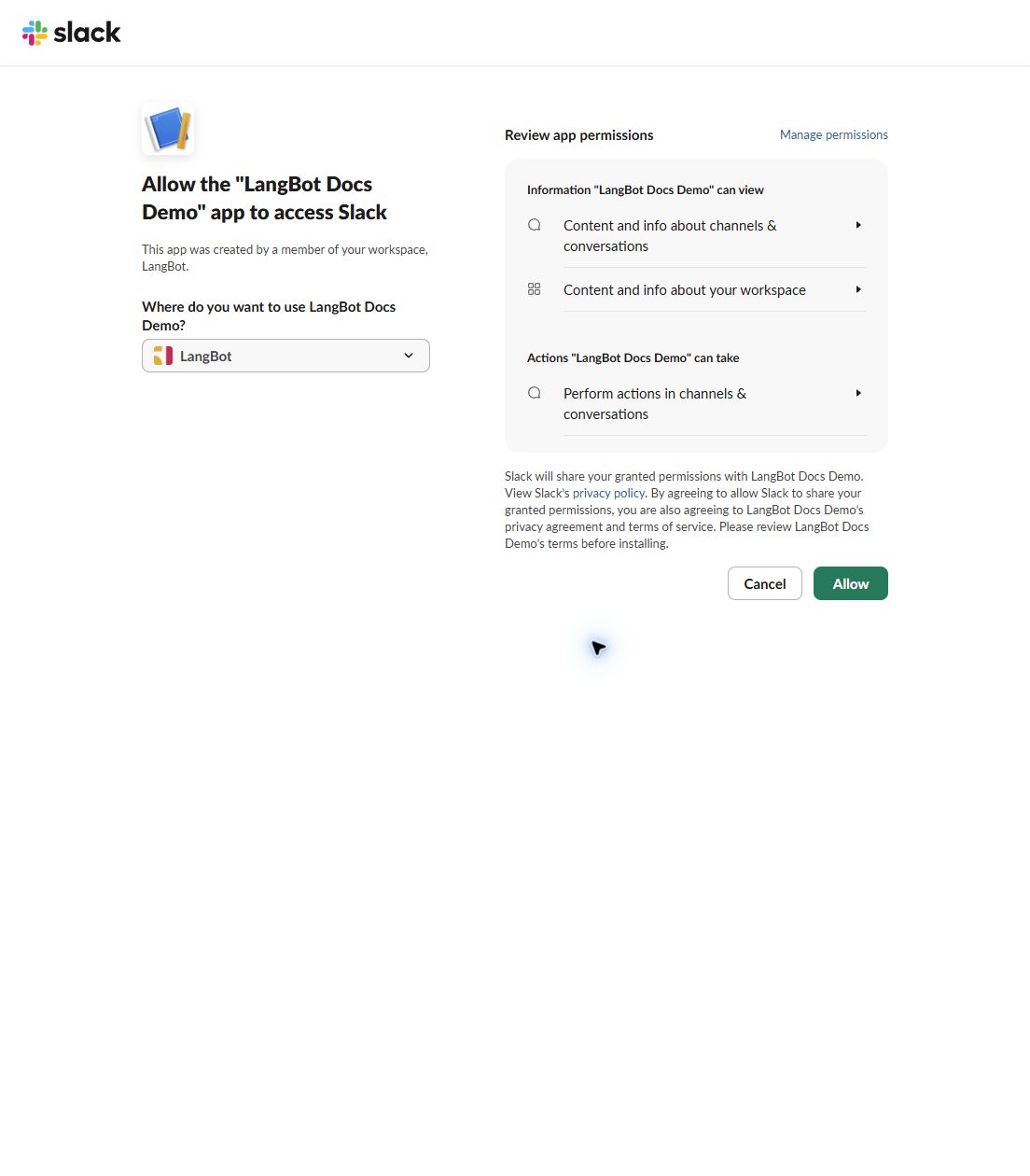
5. Socket Mode: add an App-Level Token
Skip this step for Webhook. For Socket Mode, use Open app settings in the assistant and navigate to Basic Information → App-Level Tokens → Generate Token and Scopes:
- Enter a Token Name, such as
langbot-socket. - Select Add Scope, then connections:write.
- Select Generate, copy the resulting
xapp-token, and paste it into App-Level Token in the assistant.
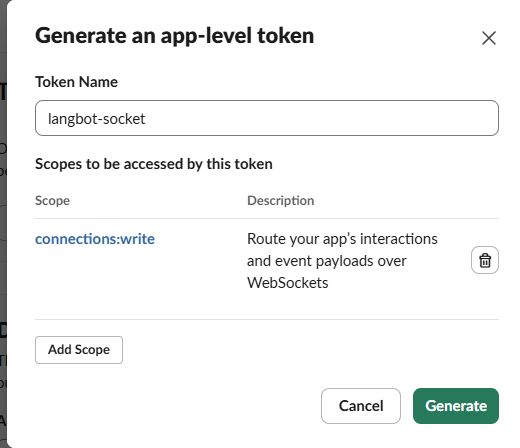
Leave Token rotation disabled. The token must belong to the same Slack app you just created. Do not use the Access Token or Refresh Token from step 2 here.
6. Fill configuration, set routing and enable the bot
When the assistant reports successful authorization, select Fill adapter configuration. In Socket Mode, this button becomes available after you enter the App-Level Token. The assistant fills the Bot Token and other adapter credentials automatically.
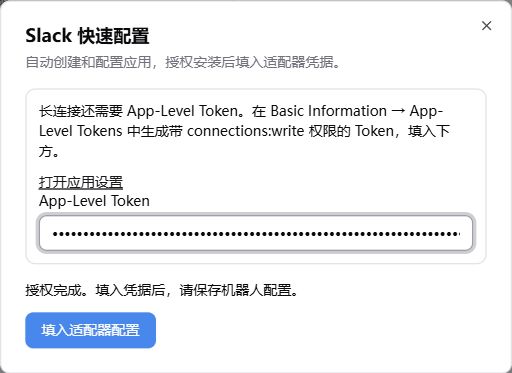
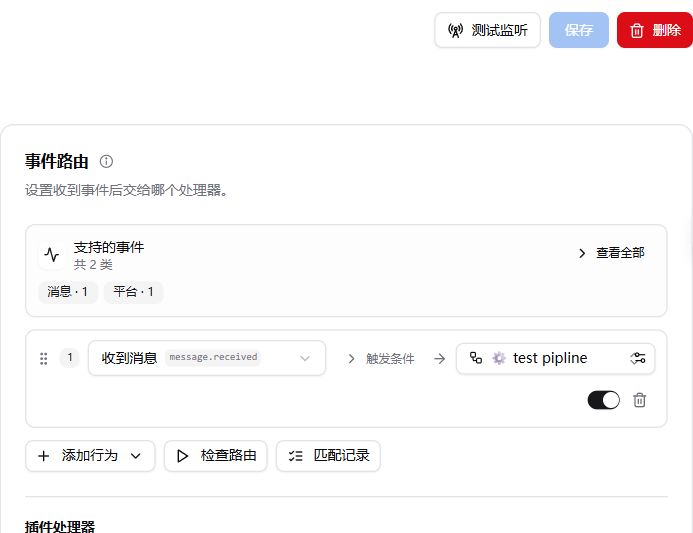
Under Event routing → Add action → Reply to received messages, select a configured pipeline or Agent for message.received and keep the route enabled. Finally, select Save and enable at the top right.
7. Test a conversation
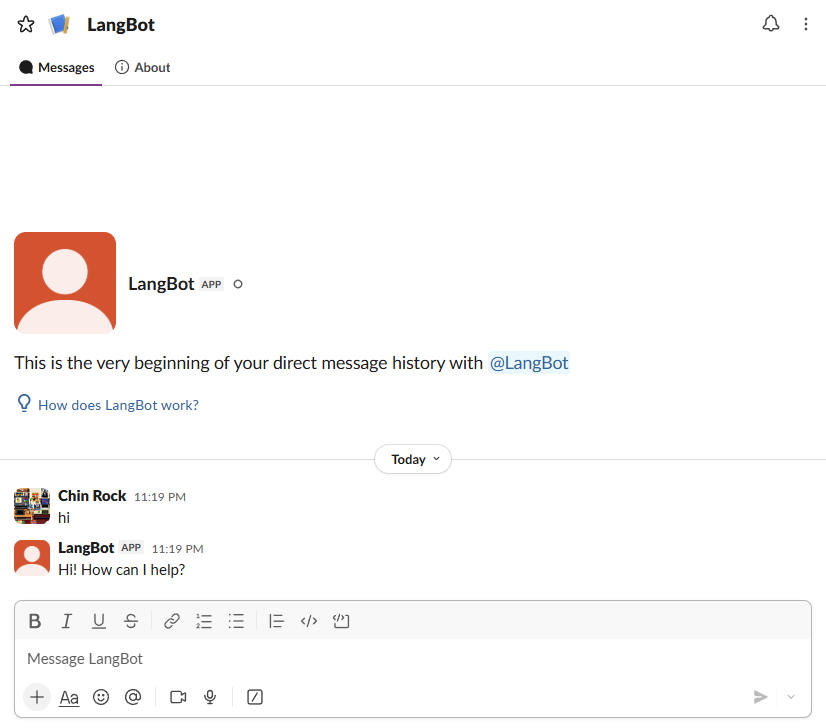
Open the app's Messages tab in Slack and send a direct message. You can also invite the bot to a channel and mention it. A reply confirms the integration works.
Configuration tokens are used only during the temporary setup session, not saved as runtime credentials. Sessions last 15 minutes. Cancelling does not delete an app already created in Slack, and starting again may create another app. If the return page shows an error, check whether the original assistant already reports successful authorization before restarting.
If no reply arrives, check that both the bot and message route are enabled, the handler works, and the bot logs show no errors. For Socket Mode, verify that the App-Level Token belongs to the same app and includes connections:write. For Webhook, check the public endpoint and Slack's Verified status.
Events, interactions and upgrading existing apps
Quick setup configures the subscriptions and interaction endpoint below. Installation requests message, channel, user, file and reaction permissions; reactions:read enables reaction events. Normal channel replies still require an @mention. Subscribing to channel messages for edits, deletions and channel changes does not trigger replies to all channel traffic.
| Slack event | LangBot event |
|---|---|
Direct messages, app_mention | message.received |
message_changed / message_deleted message subtypes | message.edited / message.deleted |
reaction_added / reaction_removed | message.reaction, distinguished by is_add |
member_joined_channel / member_left_channel | group.member_joined / group.member_left |
| Membership events for the bot itself | bot.invited_to_group when an inviter is present; bot.removed_from_group on departure |
| Channel rename, archive/unarchive, topic/purpose changes | group.info_updated |
block_actions, view_submission, view_closed, shortcut, message_action | platform.specific, with action set to slack. plus the callback type |
app_home_opened, app_uninstalled, tokens_revoked | platform.specific, with action set to slack. plus the event type |
Configure handlers in the bot's event routing; distinguish platform callbacks by action. Uninstallation and token revocation also produce bot warning logs and do not automatically send chat replies. Emoji reactions are not automatically treated as model feedback. Message IDs use Slack message timestamps (ts) together with the channel; replies preserve thread_ts.
Interactions are acknowledged first and processed asynchronously. Synchronous field validation errors in modal submission acknowledgements and external select-option loading are not supported. Set notify_on_close: true when opening a modal to receive view_closed. Receiving callbacks does not create buttons, shortcuts or modals. Both Socket Mode and Webhook support these handlers; actual delivery depends on Slack permissions, channel membership and connection availability.
Upgrading LangBot does not automatically update an existing Slack app's permissions. Keep the existing app and:
- In OAuth & Permissions → Bot Token Scopes, retain existing scopes and add
reactions:read. Verifyapp_mentions:read,chat:write,channels:history,channels:read,groups:history,groups:read,im:history,im:read,im:write,mpim:history,mpim:read,users:read,files:read,files:write, then Reinstall to Workspace to authorize the permissions. - In Event Subscriptions → Subscribe to bot events, configure:
app_mention,message.im,message.channels,message.groups,message.mpim,reaction_added,reaction_removed,member_joined_channel,member_left_channel,channel_rename,group_rename,channel_archive,channel_unarchive,group_archive,group_unarchive,app_home_opened,app_uninstalled,tokens_revoked. Edits/deletions and topic/purpose changes are message subtypes, not separate subscriptions. - Enable Interactivity & Shortcuts. For Webhook, use the same LangBot
/bots/<bot UUID>Request URL as event subscriptions. Socket Mode needs no public interaction URL. - Save Slack settings and configure the corresponding LangBot routes. If reinstallation changes the Bot Token, update it and save the bot.
See the Slack App Manifest reference for field definitions.
Manual setup (Webhook)
The screenshots below show basic messaging setup. Use the current lists in “Events, interactions and upgrading existing apps” above for complete permissions, subscriptions and interactivity settings.
The manual Webhook instructions follow. For manual Socket Mode setup, enable Socket Mode in Slack, supply Bot Token and App-Level Token, and subscribe to app_mention and message.im. No event Request URL is needed.
Create Bot
Go to the Slack App Platform.
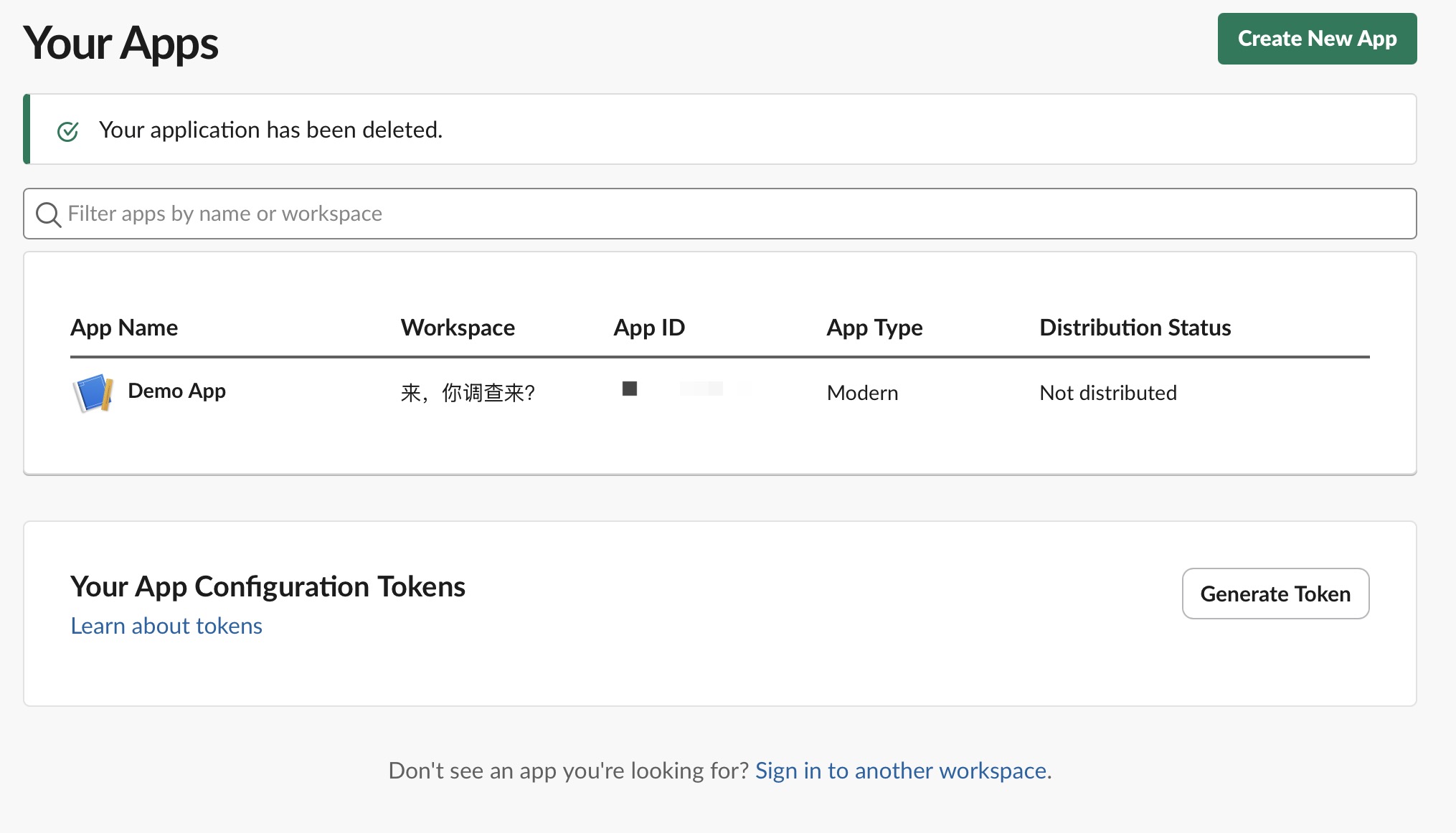
Click Create New App in the top right corner, select from a manifest, select the workspace where you want to deploy the bot, select next, and choose to create the bot.
Enter the Basic Information option on the left, record the signing_secret.
Enter OAuth & Permissions on the left, scroll down to Scopes, add the following bot permissions:
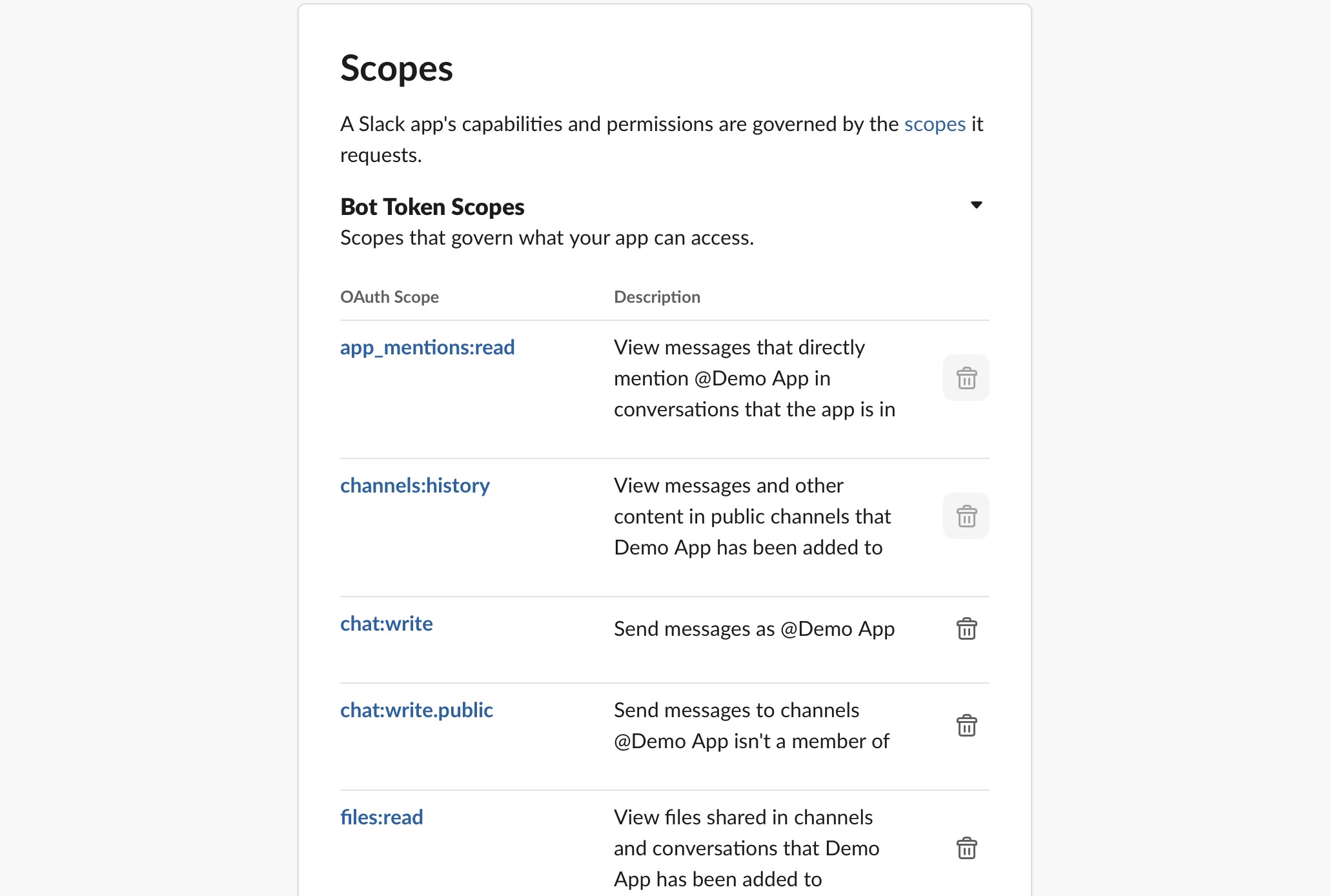
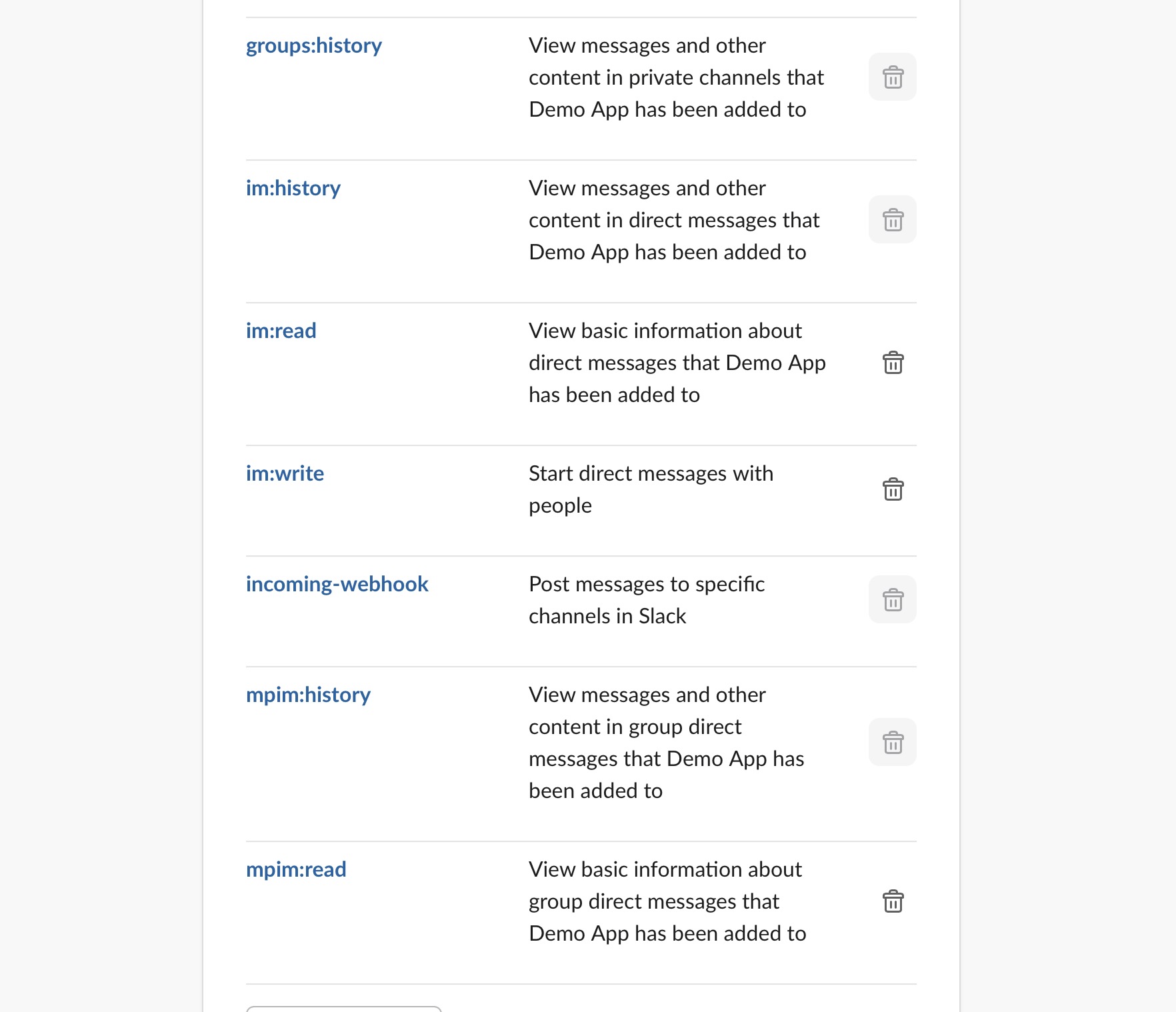
After adding the above permissions, click Install to your workspace, record the token starting with xoxb-xxxxx.
Note:
If you didn't add all permissions at once, you'll need to reinstall the App later.
Enter the App Home tab on the left, scroll to the bottom where you'll find Message Tab, turn it on and check
Allow users to send Slash commands and messages from the messages tab.
Connect to LangBot
Enter Event Subscriptions on the left, turn on the switch, click Subscribe to bot events,
add the following permissions:
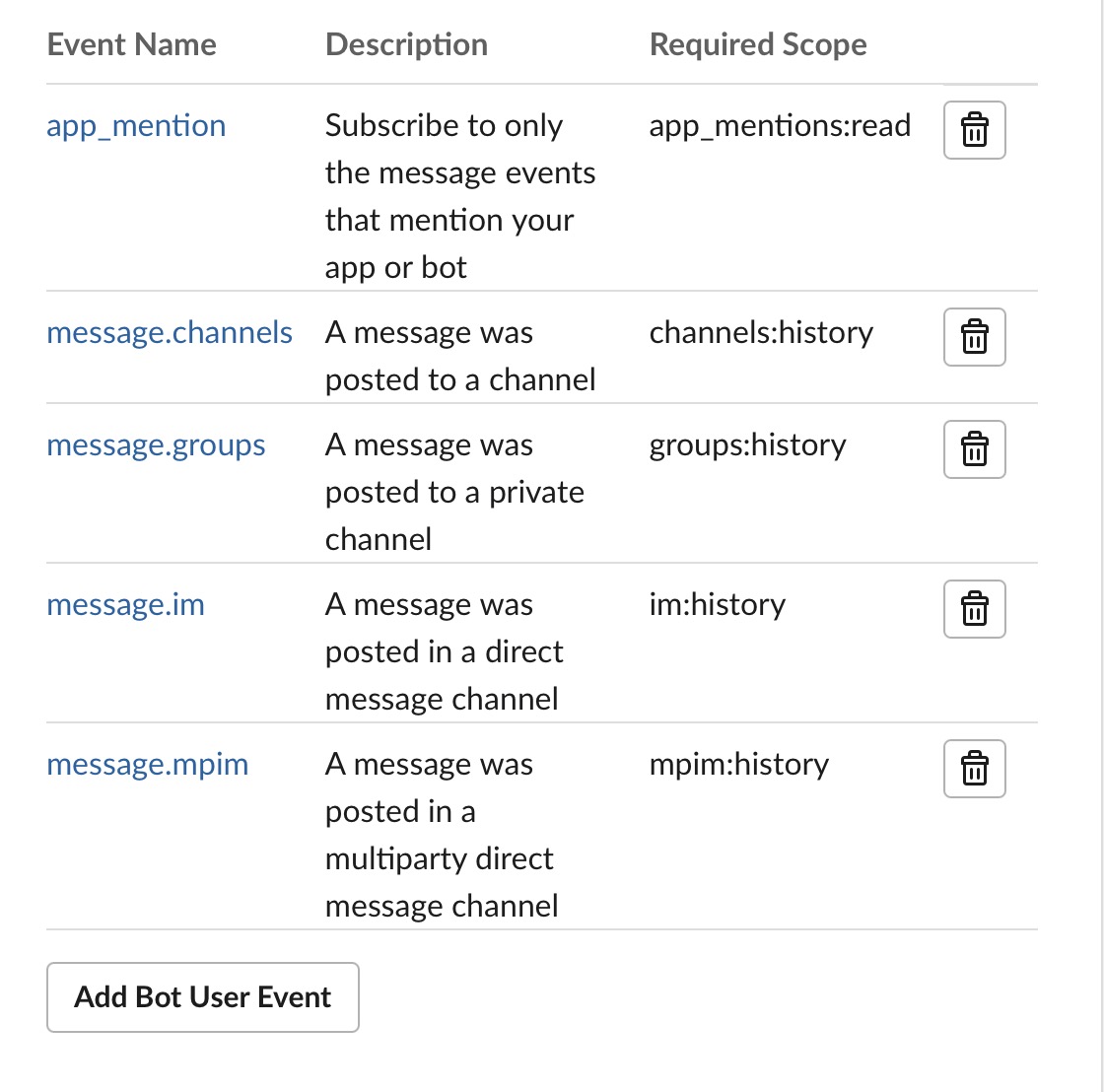
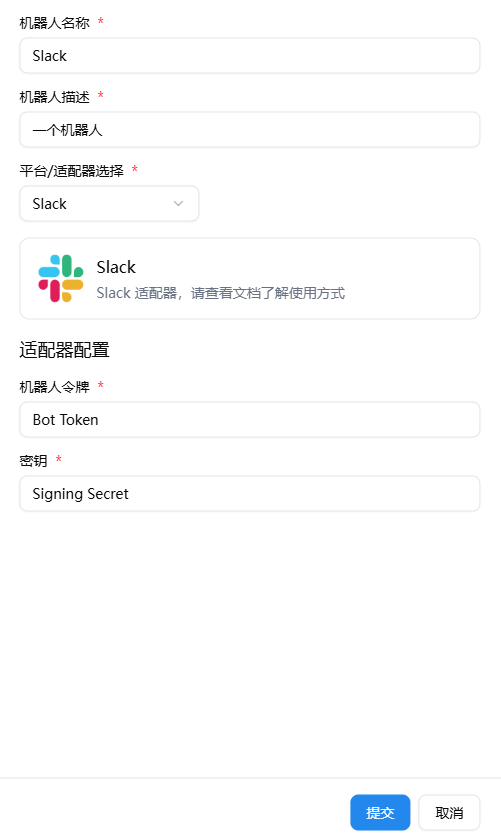
After completing all the above operations, open the LangBot Webui configuration page, add a new bot
Start Bot
Webhook mode requires public HTTPS; please configure reverse proxy first according to the documentation Configure HTTP Reverse Proxy and SSL.
After filling in the Slack configuration items, start LangBot.
Enable and open the Slack bot configuration page on the LangBot homepage, copy the WebHook URL from it, then in the Request URL of the Event Subscriptions you just configured, fill in the WebHook URL.
After filling in all the above configuration items, click save link. If it shows a green Verified, it means the deployment is successful. Otherwise, check if the above configuration items are filled in correctly.
Effect Demonstration
