DingTalk
Build a DingTalk AI bot with LangBot. Connect GPT, Claude, Dify and more to DingTalk groups and conversations.
Deploy LangBot to DingTalk.
One-Click Setup (Recommended)
LangBot supports one-click DingTalk app creation with automatic credential filling — no manual copy-paste needed.
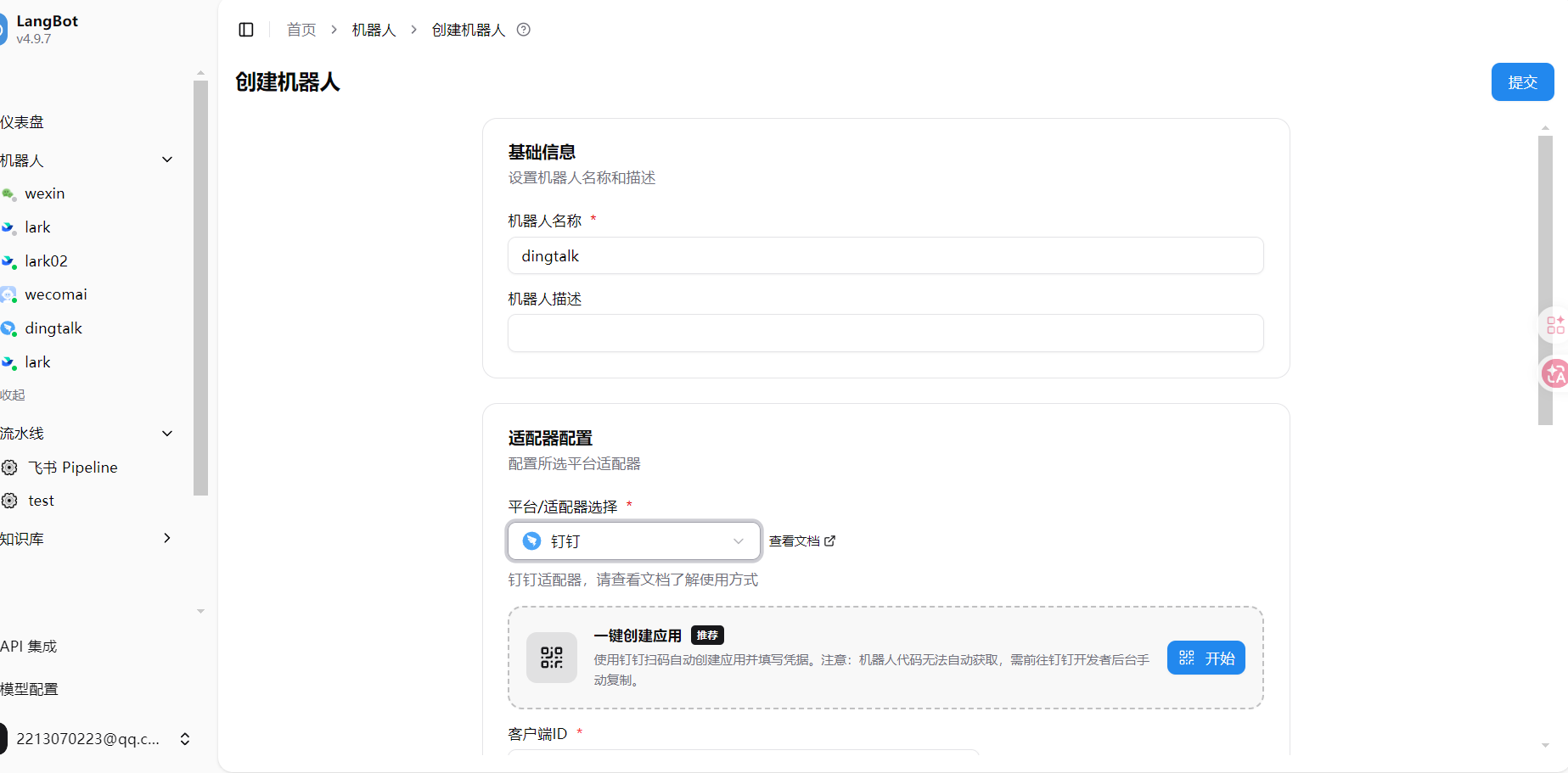
- Open LangBot WebUI, go to Bots > Create Bot
- Enter a bot name, select
DingTalkas the platform/adapter - In the One-Click Create App section that appears, click the Start button
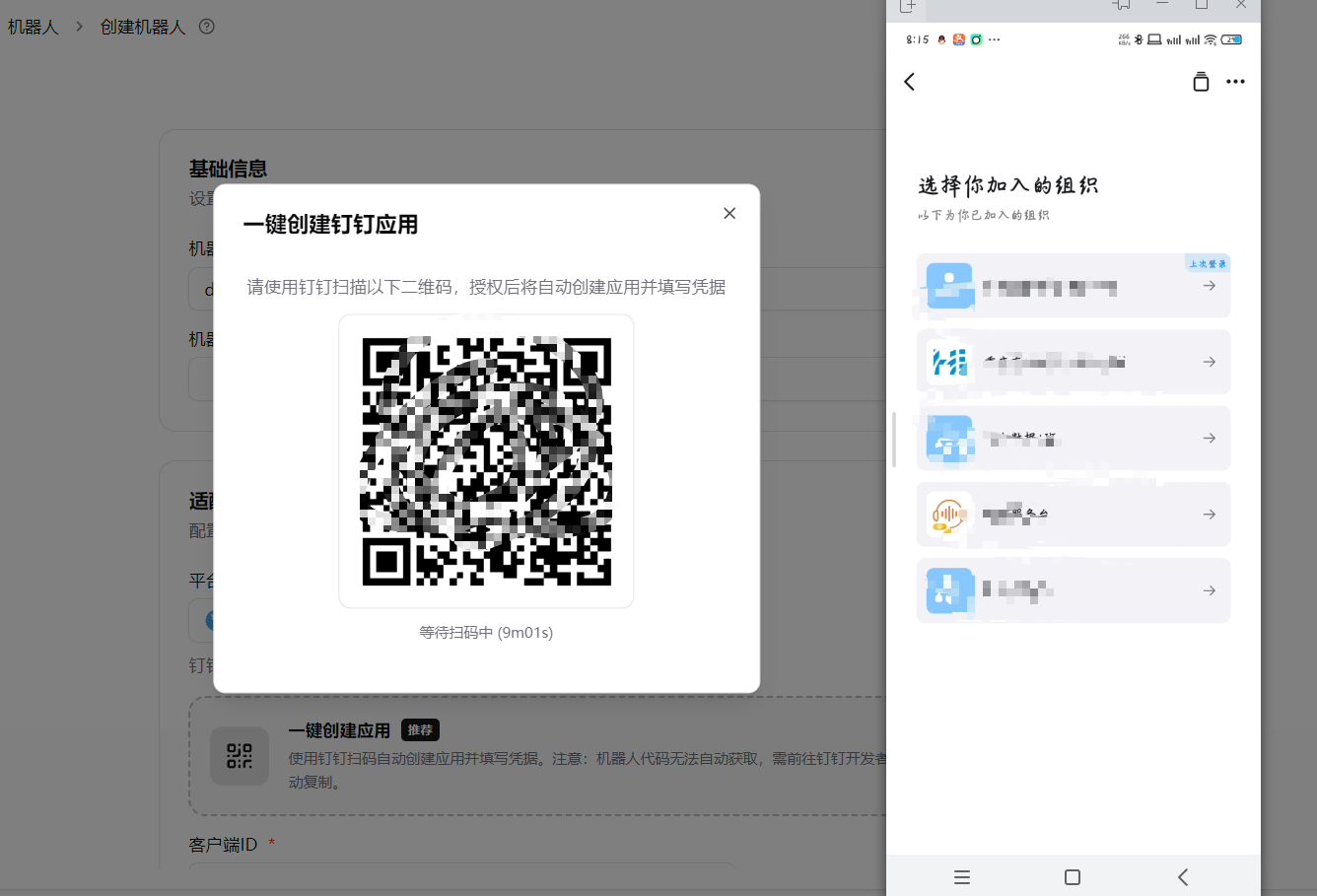
- Scan the QR code with the DingTalk app. On your phone, select the organization to create the bot in
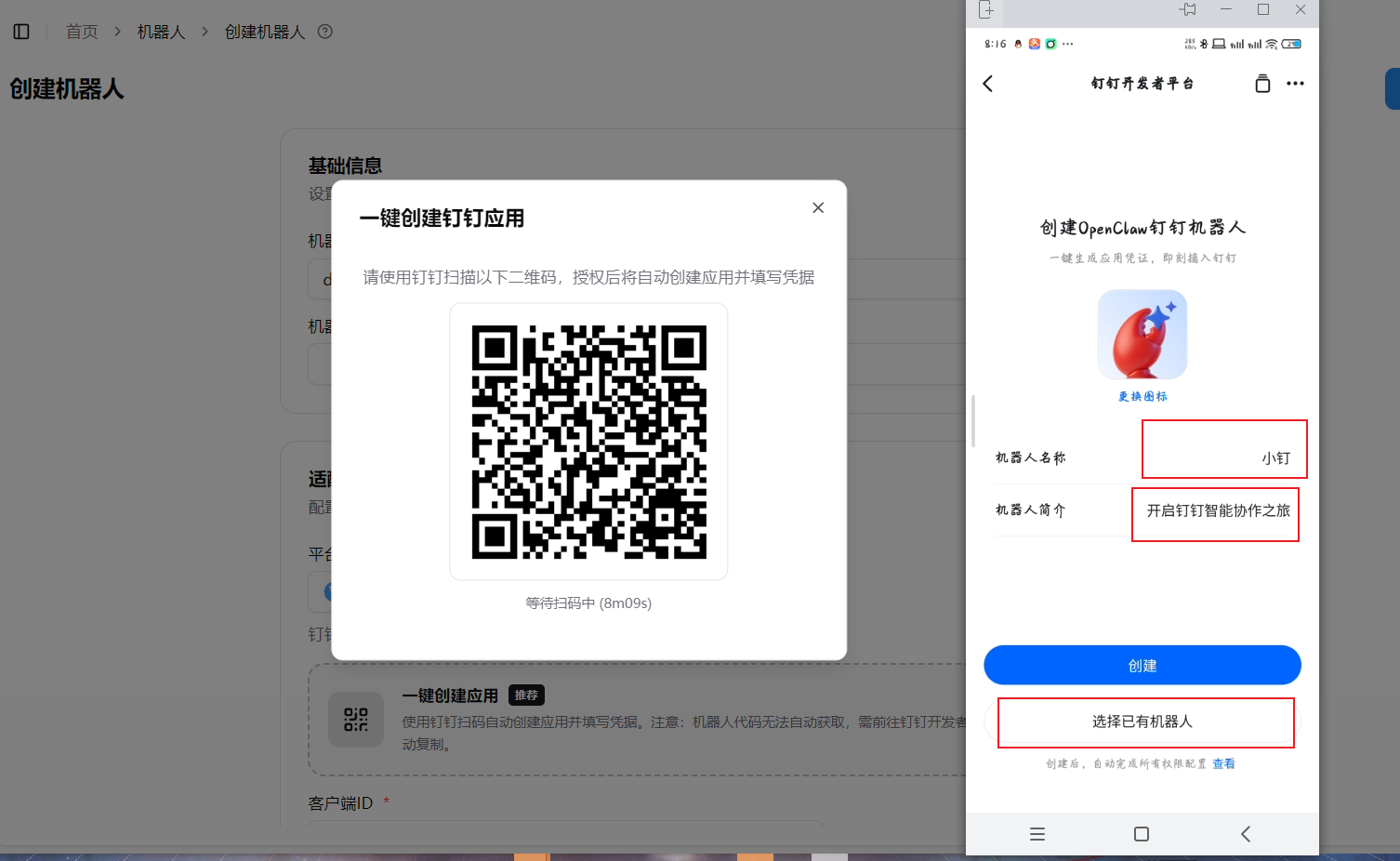
- Choose to create a new bot or select an existing one
- After authorization, the phone will show "Configuration Successful", and Client ID / Client Secret will be auto-filled in the LangBot WebUI
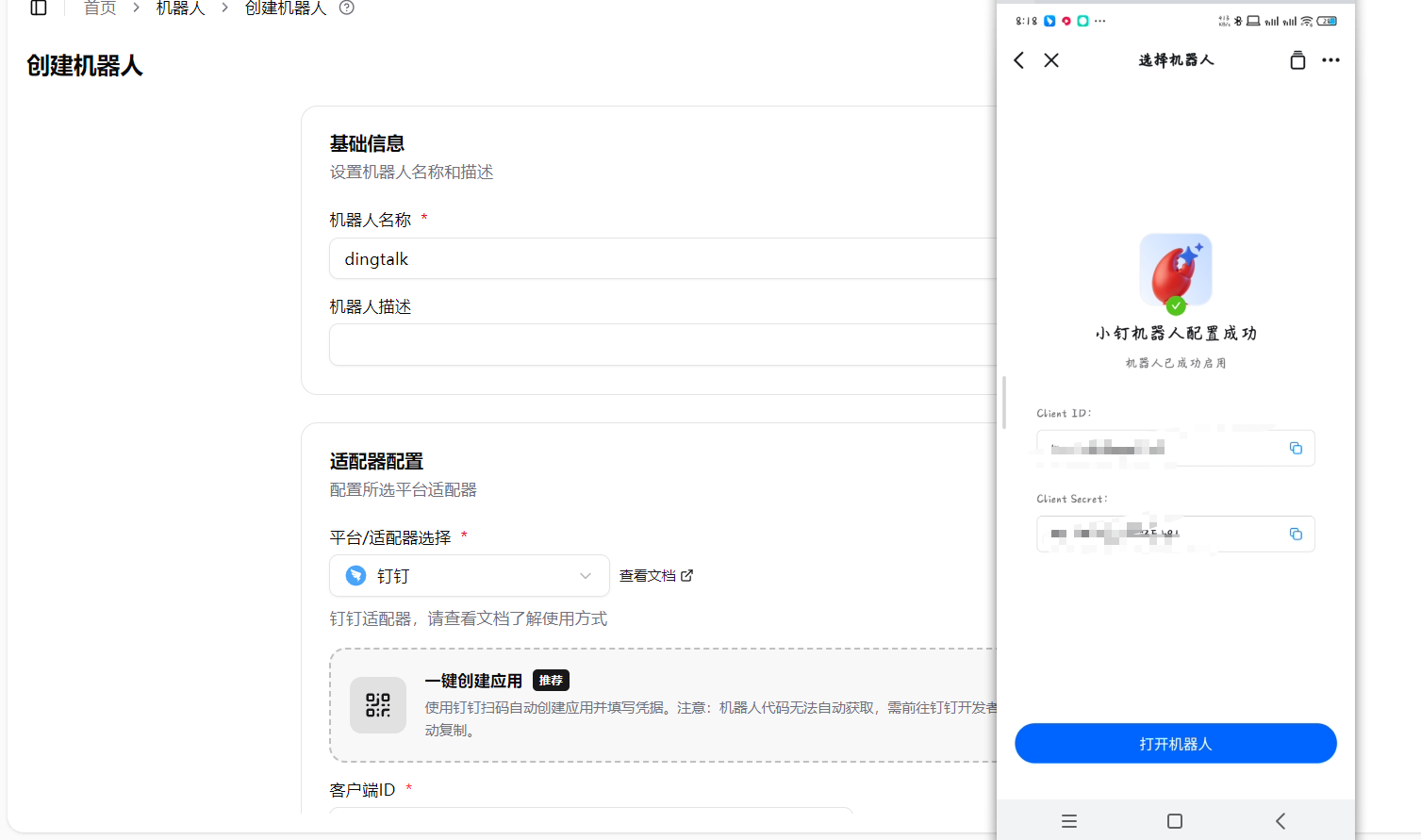
- Click Submit to complete. LangBot automatically identifies the bot.
One-click setup fills in app credentials but does not create card templates. For streaming replies, import the LangBot streaming reply template, enable Use Card Replies and set Card Template ID to automatically enable streaming replies. Turn off the switch for plain text without deleting the template ID. For human input interactions, import the separate human input template and set Human Input Card Template ID. Enable the required card permissions in your DingTalk app.
Configure card templates (use the LangBot templates)
For card replies, import the templates supplied by LangBot instead of building components and binding variables manually. Enable the required card permissions for your DingTalk app, then choose the template for your use case:
| Purpose | Download | LangBot field |
|---|---|---|
| Streaming replies with separate reasoning and answer regions | dingtalk_stream_card.json | Card Template ID |
| Pause for user input, a choice, or confirmation | dingtalk_human_input_card.json | Human Input Card Template ID |
Create and import the streaming reply template
- In the DingTalk adapter configuration, click Download Streaming Reply Card Template below Card Template ID.
- Open DingTalk Card Platform, select the same organization as your bot app, and click New Template.
- Enter a name. Set Card Type to Message Card, Template Scenario to AI Card, associate your bot app, and select Build from Blank. Click Create Blank Template. The screenshot shows these options in the Chinese interface.
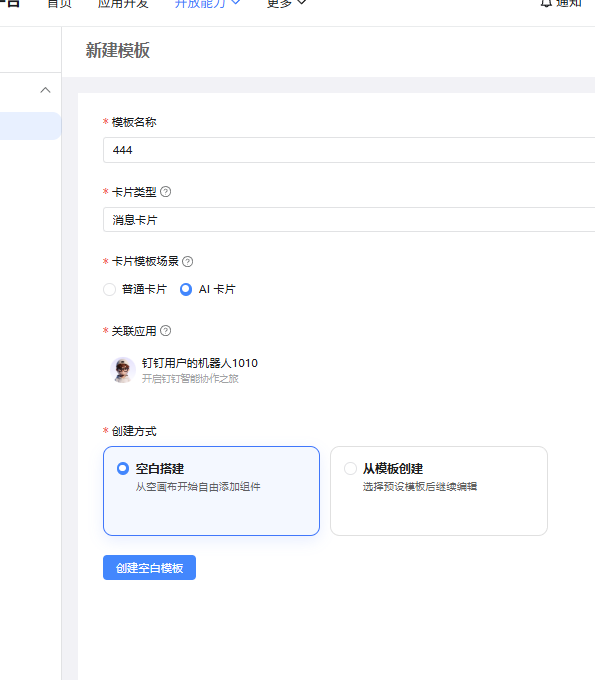
- In the card editor, choose More → Import Card Template and select
dingtalk_stream_card.json.
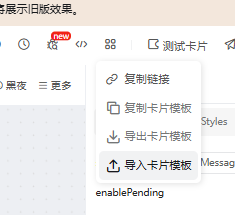
The import option is inside the editor, not on the template list page. Importing replaces the current template contents, so use a new blank template. Keep the imported components, variables, and event bindings.
- Review the preview, save and publish the template, and copy its ID. Saving a draft is insufficient:
param.templateUnpublishedmeans the template has not been published. - Enable Use Card Replies, paste the ID into Card Template ID in LangBot, and save to enable streaming replies. Turning off the switch uses plain text and hides but preserves the template settings for later use.
The template includes LangBot branding and separate reasoning and answer regions. Reasoning is expanded during generation and collapsed by default when finished; users can expand it again. The footer offers answer copying, thumbs-up/down controls, and an AI-generated content label. The pipeline still controls whether reasoning is removed. If removed, the reasoning region is hidden. Ordinary messages with reasoning retained show literal <think> and </think> markers separated from the answer by blank lines.
Card Auto Layout is enabled by default; the supplied streaming reply template includes the required variables. For an existing bot saved with this option off, enable it and save the configuration. You can keep it off for a narrower card.
To update, download and import the latest template, then save and publish again. If you create a different template, also replace its ID in LangBot. Existing templates bound only to content remain compatible but do not offer the new separate reasoning region.
Import the human input card template
Human input is used when a workflow or plugin waits for information, a choice, or confirmation before continuing, such as a Dify Human Input node. Ordinary chat and streaming replies alone do not require this template.
- Next to Human Input Card Template ID, click Download Human Input Card Template to save
dingtalk_human_input_card.json. - Follow the creation steps above to create a separate Message Card → AI Card → Build from Blank template associated with your bot app.
- Choose More → Import Card Template in the editor and import the human input JSON. Keep its input fields, buttons, variables, and event bindings.
- Save and publish, enter this template's ID into Human Input Card Template ID in LangBot, and save the bot configuration.
Import the two templates separately and use their corresponding fields. The human input template does not replace the streaming reply template or automatically enable streaming replies.
Manual Configuration
Create Bot
Enter the DingTalk Developer Backend, log in and enter the organization. After successful login, enter the open platform, which looks like this:
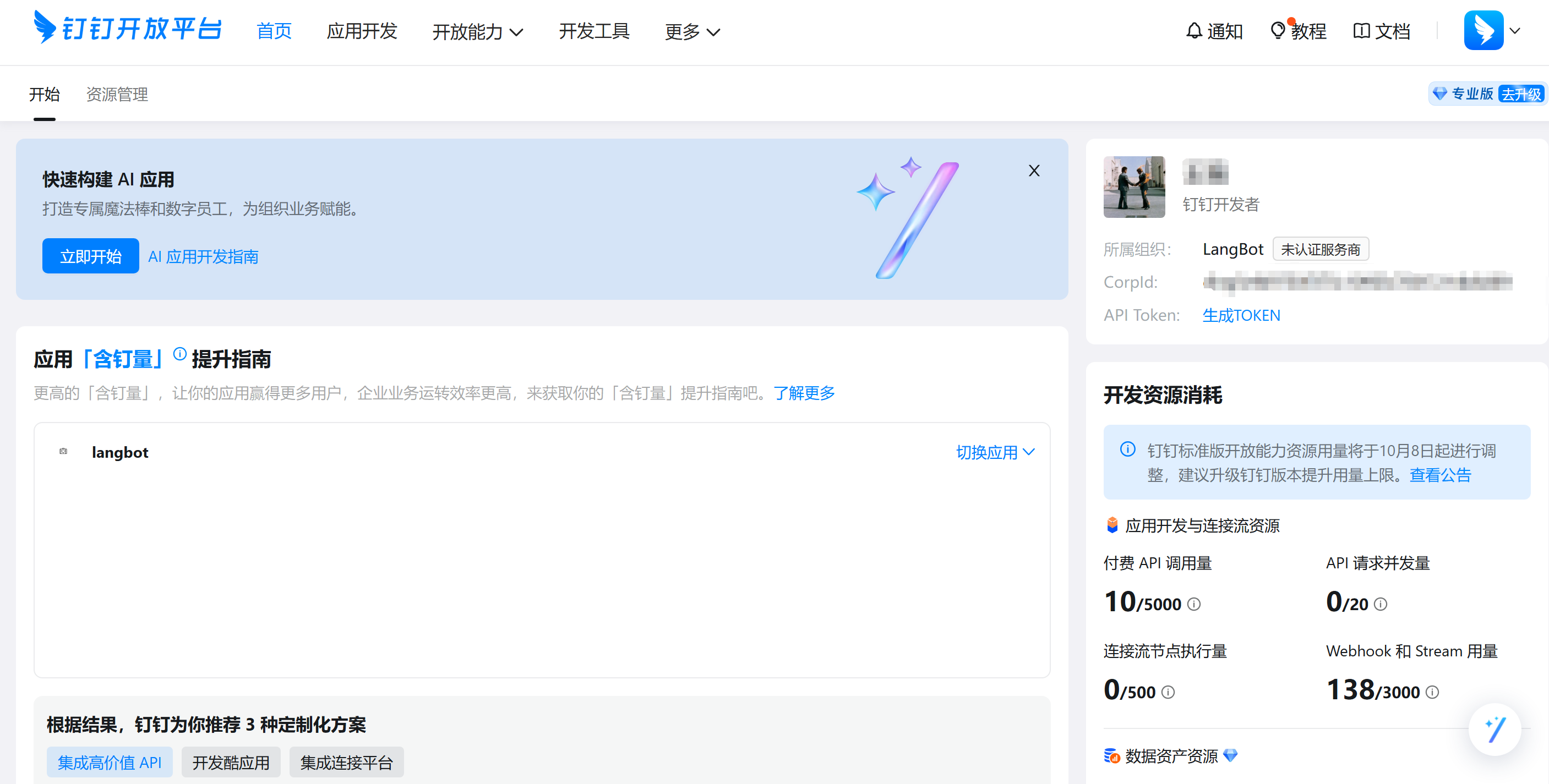
Click Application Development at the top, then click the blue button Create Application on the right, fill in the basic information of the bot, and click save.
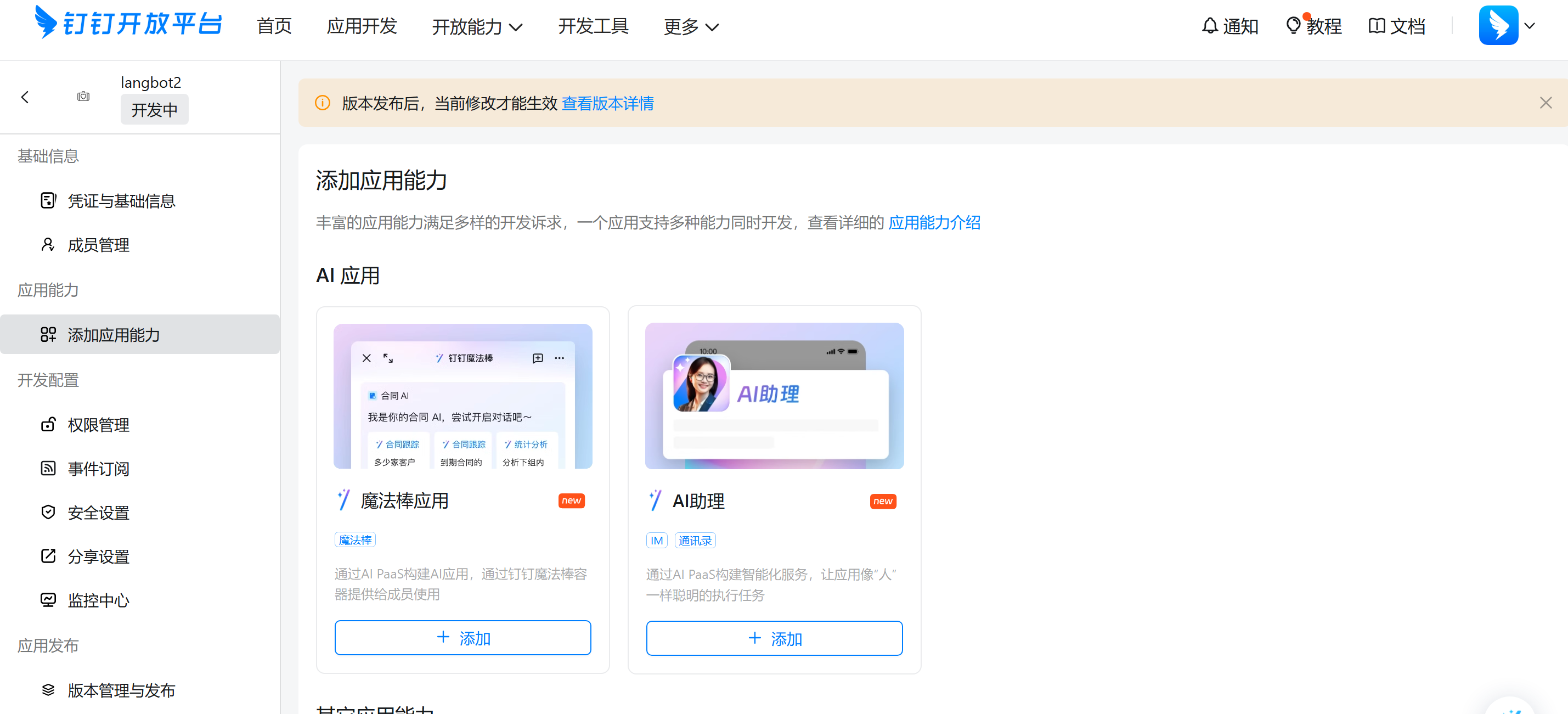
Enter the bot's backend, for example, if we have a bot named langbot2, its management page looks like this:
Configure Bot
Click Add Application Capability, Other Application Capabilities, Configure in Robot, click configure and fill in the information, as shown below:
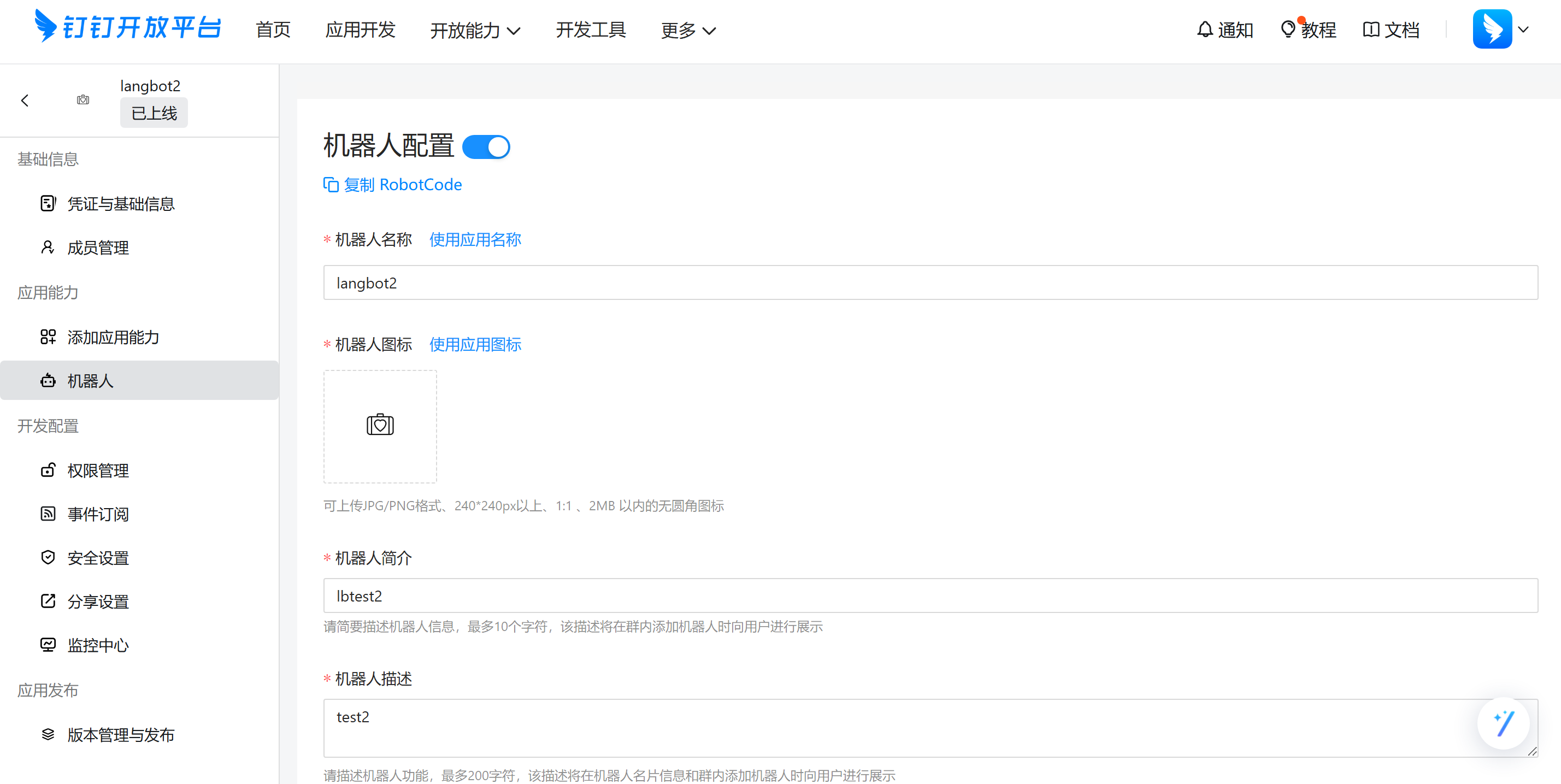
Click Publish at the bottom of the page, after successful publication, click Version Management and Publishing at the bottom left of the bot page, as shown:
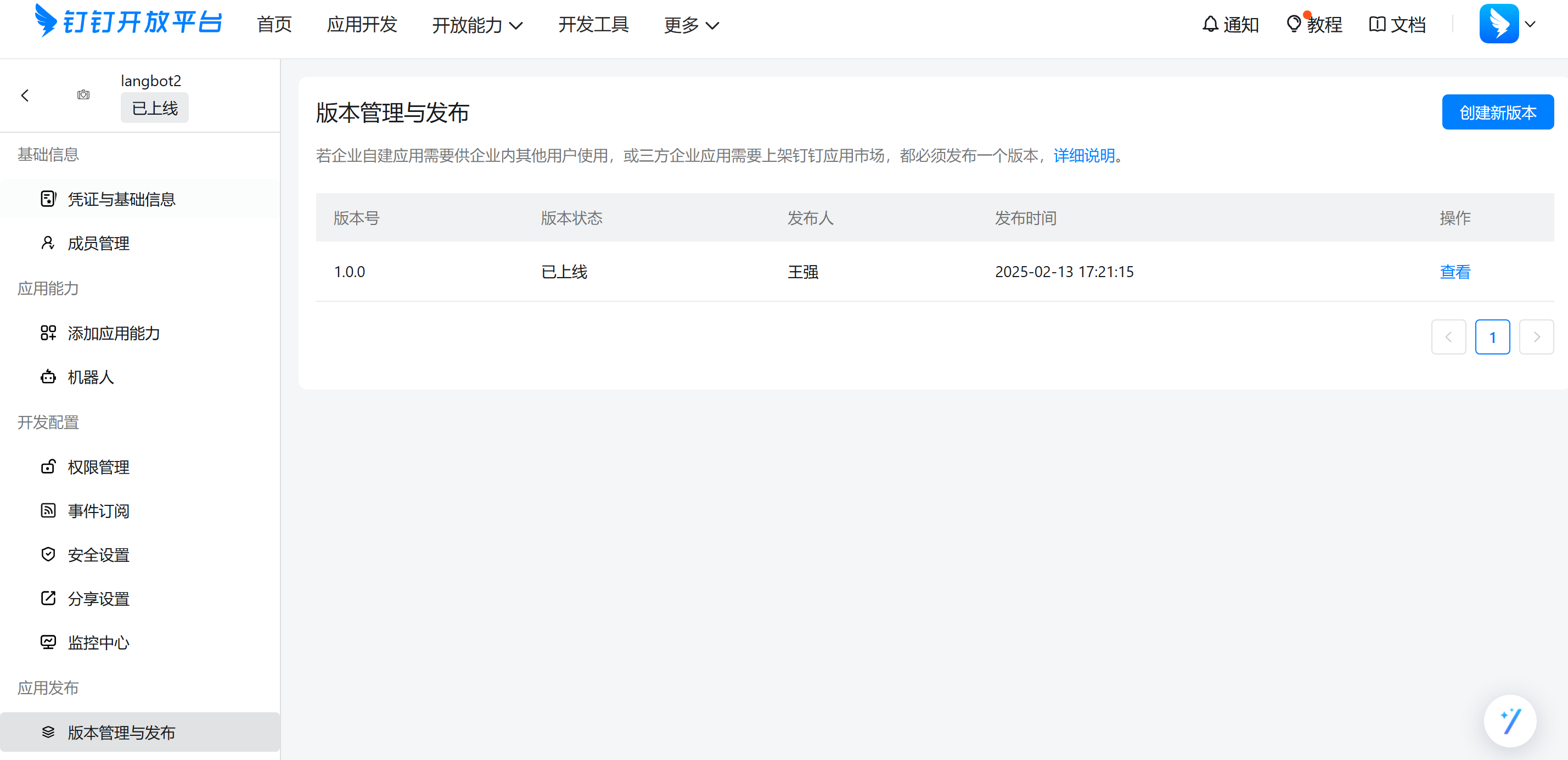
If this is the first time creating a bot, the right side is empty, you need to click Create New Version, set information in it, then set Application Visibility Range, and click save.
Click Event Subscription, change the push method to Stream Mode Push.
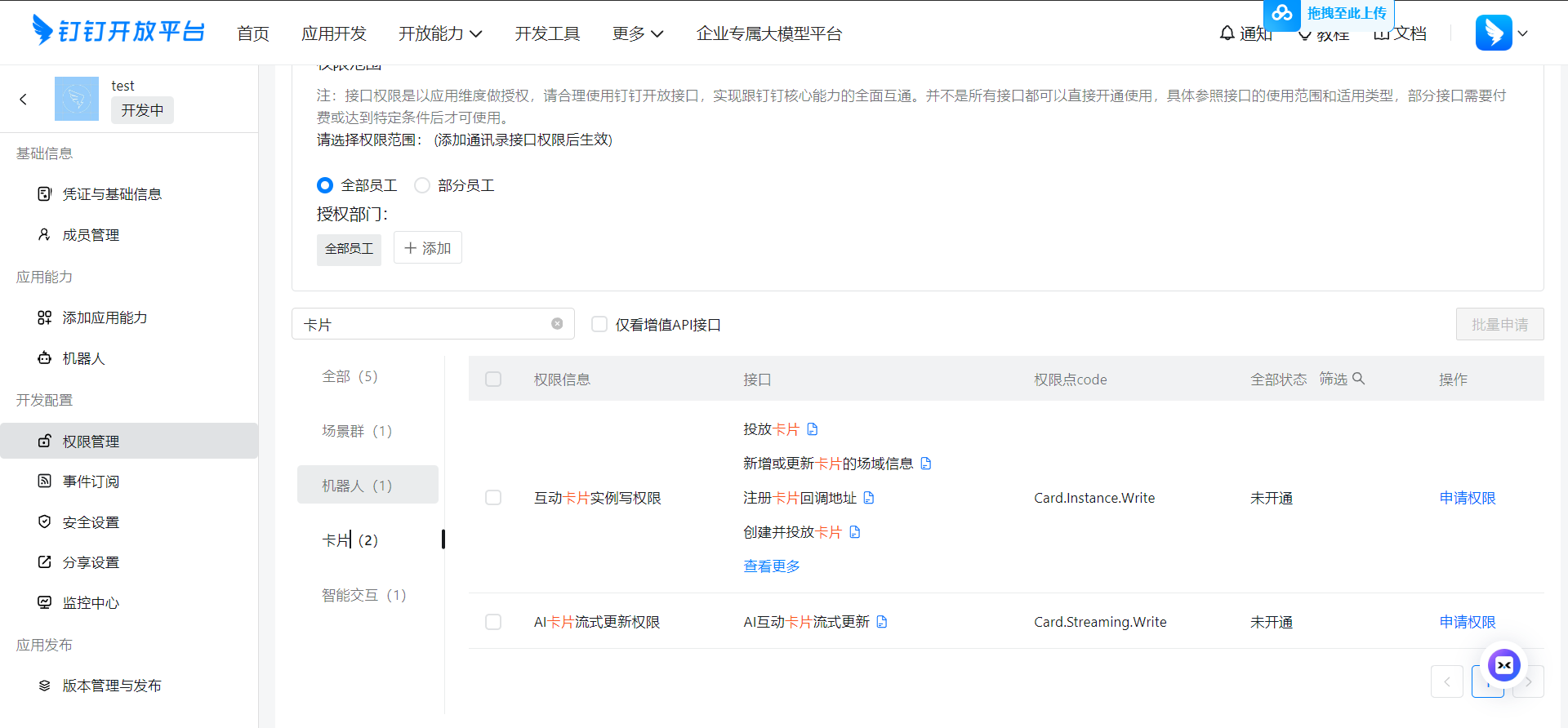
If card streaming is needed, you must apply for card permissions in the permission management, as shown:
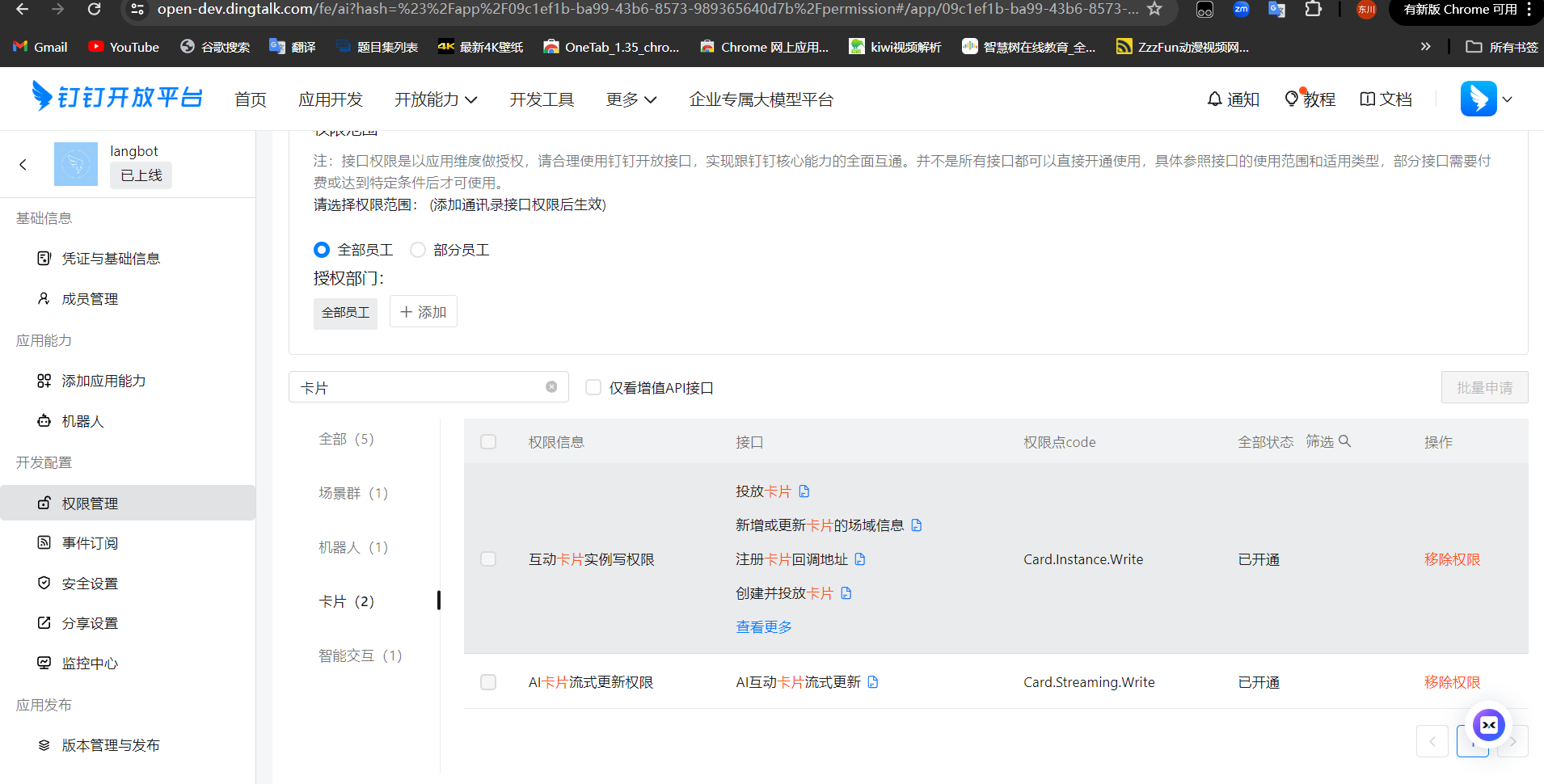
For card templates, follow the steps above to import and publish the templates supplied by LangBot.
Fill in Configuration Information
Click Credentials and Basic Information, record Client ID and Client Secret, and enter these credentials in the LangBot adapter configuration.
markdown_card (Use Card Replies) controls both Markdown and streaming card replies. When enabled, a configured template enables streaming; otherwise ordinary Markdown is used. Disable it for plain text without clearing template settings. Human input cards are configured separately for workflow interactions.
Record the above configuration items and fill them in the LangBot bot configuration form
Click Card Platform, copy the corresponding bound template ID from the template list, and fill it into the card template ID field.
Start LangBot.
Add Bot
This article uses DingTalk Windows desktop version as an example, click Search at the top, Features, then enter the name of the bot you just created, as shown:
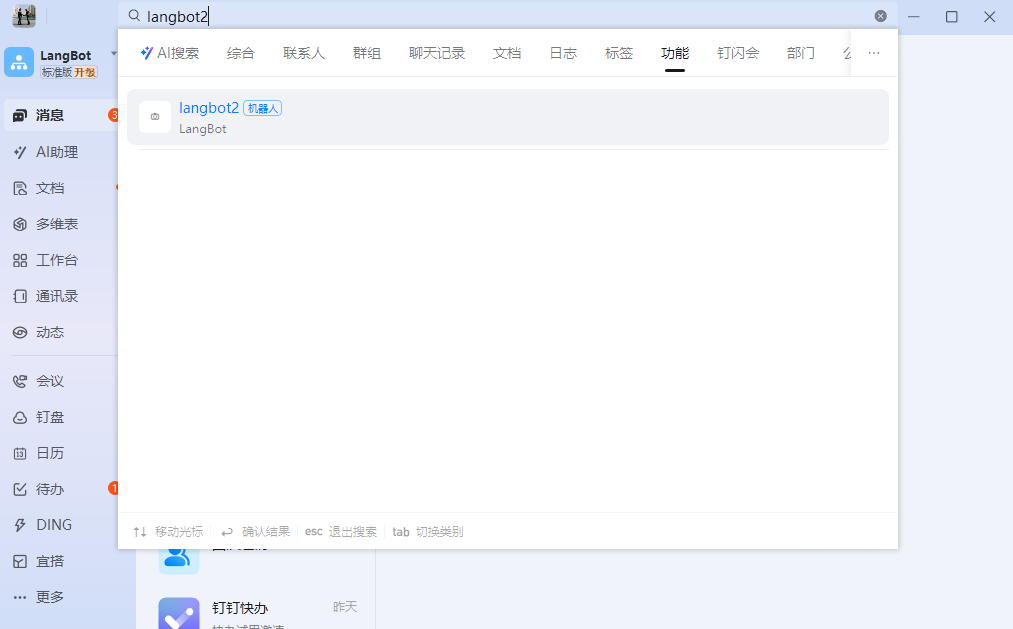
Click on the bot to chat with it.
If you want to add it to a group, click Group Management, Robots, Add Robot in the DingTalk group, then search for the bot name to use it in the group.
Event subscriptions
Select Stream mode under Event Subscriptions in the DingTalk app console and enable the required events. This is separate from the robot message callback setting.
chat_add_membermaps togroup.member_joined, once per affected member.chat_remove_member/chat_quitmap togroup.member_left, distinguishing removal from voluntary departure.chat_update_title/chat_update_ownermap togroup.info_updated.- Ordinary card interactions emit
dingtalk.card_action. Recognized feedback usesfeedback.received; managed input forms retain their existing interaction flow without duplicate triggers. - Group disbanding and other subscribed events use
platform.specific, preserving the native event name inactionand the original headers and payload indata.
Group events depend on application permissions and supported group types. Member notifications containing only unionId remain platform-specific; unionId is not treated as a messaging user ID. Message editing, recall, reactions, friend requests and bot mute events are not advertised without a confirmed corresponding push capability.